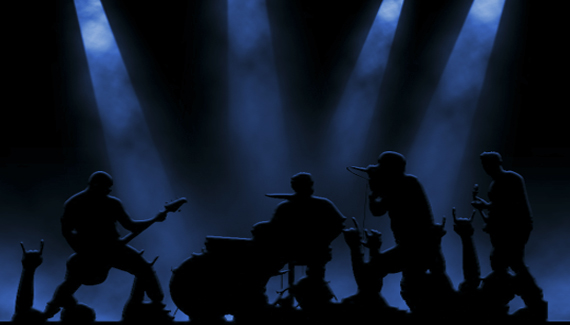
Learn how to make these smoky stage lights by creating a gradient selection in quick mask mode and applying some filters and layer styles.

Learn how to make these smoky stage lights by creating a gradient selection in quick mask mode and applying some filters and layer styles.


Pretty cool Corey! thanks and keep ’em coming.
wow Ilove it
WOW do you ever run out of ideas and tutorials, you have tutorials coming out of your ears.
Corey,
Another great tutorial for all of us. You are amazing. Thanks so much! Keep up the fine work.
imba Corey!!
thanks very much for ur Tutorials
Best tutorial so far, keep up the great work Corey!
really great, corey. an excellent and unusual tutorial. just perfect and inspirational.
-kurt
omg sooooo coooooooooooooool dude
so cool, Corey. You have talents, man.
this tutorial is amazing keep doing we are learning a lot ,,
Thank you
This one was great, Corey. It would love to see how you would handle the glow on the band if you were to use two different colours of light.
Great Tutorial. You should make the project fils available to use, just like the ones you guys do on Layers TV.
Hi corey,
Man…Another very well explained tut….I love these..and am learning so much….please keep them up…
Ahhhhhhh wow…love this tutorial, way to go… You da boss Corey…
holy S**T dude! this is awesome!!!! loved it!!! cant wait to see all your other tuts! excellent works just excellent!
This tutorial is terrible. Not really. It is great and has so many applications, really gets my wheels turning. Just thought I’d mix the comments up a bit 😛
Holy CRAP man! That’s freakin’ intense! Outstanding work!
Awesome tut. Very informative and has many more applications than the subject shown. Thanks for your wonderful service to this community!
Thanks so much i have learned so much from all of these tutorials and please keep them coming, thanks again
Really good.
I think you said the shortcuts too quickly and I got a little lost during colour fill, but otherwise I found it a very good tutorial.
Thank you.
David J
Man all i got to say is that is one cool trick i tried it out with some other black and white backgrounds and the results are crazy. there was times i did get lost a bit but i got back up and did it. keep ’em coming
Awesome tutorial yo, do you got the band image so i can try it? Thanks
Cool man – – – Very cool.
i’m having a problem in the last step. When i add the solid color adjustment layer my document just keeps black and white like i never added anything. Does anyone know what i’m doing wrong? I’m kind a new in Photoshop
AWSOME
you’re putting us lighting guys out of a job 🙁
so interesting so different and very well explained!
Thanks for sharing your knowledge!
Donella
Arte Moderno Cubano
I work in lighting for a showroom in Las Vegas…and am a photographer…this lets me enhance all my photos and graphics in a phat way!!!!! Outstanding!!!
Awesome man! btw I’ve been trying to find out how to get the workspace background in ps transparent so i can get to files without minimizing ps. never found the solution. care to tell me any1?
Estoy sorprendido con este tutorial, me gustó muchisimo; justamente lo que estaba buscanso, ese efecto tan real de estar en un escnario con sus luces.Realmente es grandioso tu trabajo.Muchas Gracias
Simply amazin!!! Dats creative dude!!
i’m just a little kid around 13 years and is willing to learn alot about this if you could help me out that would mean the world to me.. and your really good at nice job!!!
really good tut thanks
Wow-Ive been looking at tutorials on PS for a week and just came across yours tonight. Apparently you single-handedly created PS,kidding but you are by far the most talented on the web, and you do it without sounding like a complete dork..thanks!
swell… and what an easy to do it! thanks much for sharing.
hey frendz
can anyone send me the whole tutorial os the stage light as written to my mail ?
plz frendz help mee coz my system wont support flash player 9 and hence the video wont play…………
so i kindky request u frendz to forward me this tutorial so that i can also know abt this tutorial ………….
Amazing, Just simply Amazing
In my own Opinion, i liked the Soft Light
very veryy nice..thanks a lot…….I have a doubt…we can copy this movie of tutorial to keep it????
Hi guys, do you know why i can not see all the video-tutorial?? When it isin the middle, it appears and add and then the video doesn’t continue playing…
Thanks
nice but where do u get ur photos mate
this is really nice 🙂
i tried it <3<3<3
This tutorial is really amazing!!!
I cant imagine people have nice ideas like this!
But I say it 10 seconds ago.;)
Keep amazing us!
Voskan
Good tut.
I had to do the gradient selection backwards though. Otherwise the marching ants were on top. I did everything you did, don’t know why it gave opposite. The quick mask looked the same, but when I came out of quick mask mode, the marching ants were on the top half, not bottom half. 😛
Cory, you are a great instructor, and I would have to say after a year of seeing and reading tutorials all over the web, this one has to be one of THE coolest and greatest ones I have ever seen. I am ever so grateful for all of your hard work, and ever so grateful that you make this all available for those of us who don’t have the time or money to go to school full time to learn all this stuff. Thanks again so much…Doug
love this tutorial really help thanks
thats crazy… can we make each individual light a different color??
Hello Corey !
Many thanks for your tutorials very useful ! You are the king of photoshop !! I’m working in the entertainment field and this one is going very useful for designing our new brochure !
Fanatastic skill Corey thank you for sharing, however at the moment 14/05/09 21:29 uk time, the tuturial finishes halfway through? hopefully this is a problem my end. if not hope it will be resolved soon. Once again thank you. Gaz
Really stunning tutorial !
Wow, Im still confused with photoshop it seems like there is a lot to do lol this was an impressive tutorial too, well done.
Oh, this tutorial was a lifesaver!! I’ve been trying to get the stage light effects with totally different methods, but this was quick and so easy. Thanks a lot!!!
your simply great
Thank you so much – this was just what I needed!!
This an absolute awesome tut, I have the ideas for my new project. Thanks for the easy to follow details.
I’m having trouble using the gradient tool in quick mask mode. I follow the steps you give exactly and it won’t use the gradient to select in quick mask mode. The paint tool works perfectly fine, but when I switch to the gradient tool, it doesn’t work. Any idea as to what I’m doing wrong?
I have always wanted to use the smoke effect but this is the easiest tut I have seen so far, thanks.
The stage effect is a very cool feature to use
THANKYOU THANKYOU THANKYOU so helpful please continue your tutorials
Rocking stuff saved me hours of work!
why can’t I apply a gradient in quick mask?? every time I try it doesn’t work..
Amazing! thanks Corey! one of the best tute-speakers I’ve learnt from! 😀
after applying the gradient, my marching ants are not halfway up. They are halfway up on the background and then surround my white rectangle all the way up to the top. what am I doing wrong?
Hi, Excellent Tut! I am wondering, though, how to emulate the quick mask mode in Photoshop Elements 7.0. any ideas?
Thanks much in advance
That’s great :O thanks for this and waiting for mooooore :))
Can I put color to the lights??