This is awesome. I have a picture of small size. Is there any way that I could blowup the image without having distortions in the image? (Zooming only distorts the image)
Corey Barker
not just this tut but all of your tuts kick a#@, you should be the Don of Photoshop, I have learned more from you than books and schools and other websites, you are simply the greatest, keep em coming I have learned more in a month than I have in a year fumbling around. what is your secret, do you use ps and illy 24 hours a day?
you are the man what is your secret of learning all the tools? lately you have been focusing on the warp tool and have taught me allot. Please keep them coming
Do you have a Corey Barker Cd of your tips and tricks? you the bomb
Leon
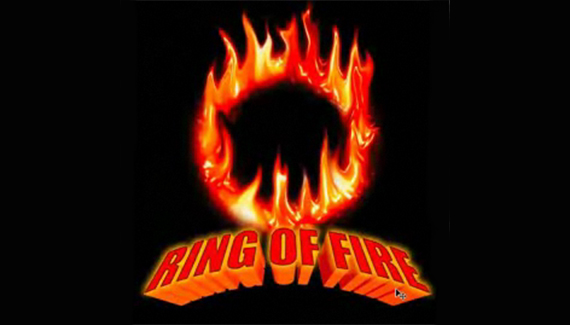
great video tut.. shame my attempt to do it looks not as good as yours. i dont have a brush density option on my liquify filter, may be why. Just cant get the fire to look as ‘real’ as yours…
This post appears to recieve a large ammount of visitors. How do you get traffic to it? It offers a nice individual twist on things. I guess having something authentic or substantial to talk about is the most important factor.



Hi
This is awesome. I have a picture of small size. Is there any way that I could blowup the image without having distortions in the image? (Zooming only distorts the image)
Thanks
Suma
Corey Barker
not just this tut but all of your tuts kick a#@, you should be the Don of Photoshop, I have learned more from you than books and schools and other websites, you are simply the greatest, keep em coming I have learned more in a month than I have in a year fumbling around. what is your secret, do you use ps and illy 24 hours a day?
you are the man what is your secret of learning all the tools? lately you have been focusing on the warp tool and have taught me allot. Please keep them coming
Do you have a Corey Barker Cd of your tips and tricks? you the bomb
Leon
great video tut.. shame my attempt to do it looks not as good as yours. i dont have a brush density option on my liquify filter, may be why. Just cant get the fire to look as ‘real’ as yours…
not having much luck on the liquify but 🙁 for some reason it wont let the flames go outside of the gaussion blur, please help
This post appears to recieve a large ammount of visitors. How do you get traffic to it? It offers a nice individual twist on things. I guess having something authentic or substantial to talk about is the most important factor.
I like your tutorial maybe with warp it may create better result or maybe some dusty things.
Thank you very much for sharing all of the great content! I am looking forward to reading more blogs!