
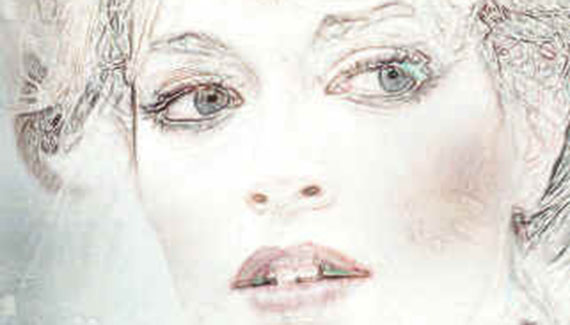
This week I’ll show you a quick way to turn your photos into a line art drawing. This effect is fairly popular, but I’ve not seen many tutorials on how to get from point A to point F (i.e. finished image). So without further ado…
Open your Photo.
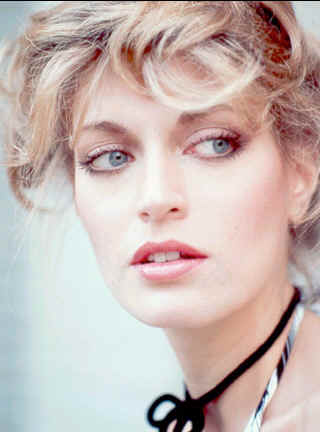
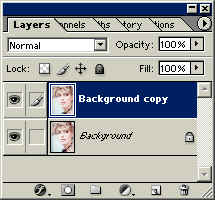
Duplicate the Background Layer.
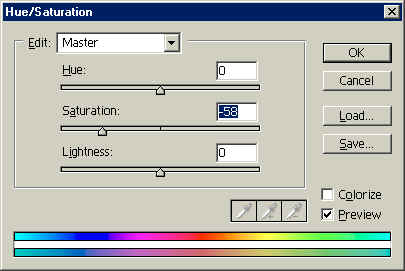
Go to Image>Adjust>Hue/Saturation. Reduce the saturation of the Background Copy layer.

Duplicate the Background Copy Layer.
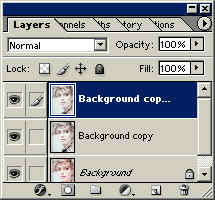
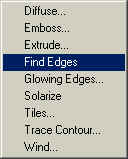
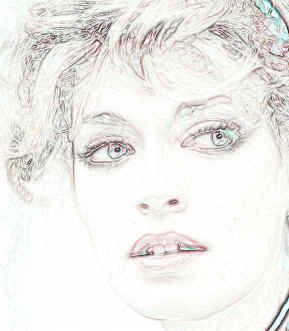
Go to Filter>Stylize>Find Edges and apply it to the newly created, topmost layer.
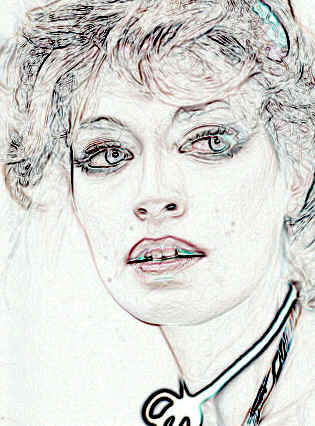
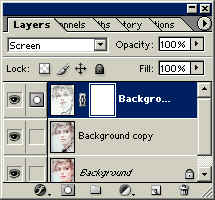
That is really a bit overbearing, so lets see if we can’t make the line art a bit more subtle. Set the top layer blending mode to ‘Screen.
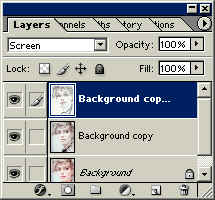
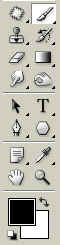
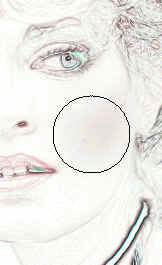
Click the ‘Add a Mask’ icon on the bottom of the Layers Palette. Make sure the foreground Color is set to Black. Click on the Paint Brush Tool, select Airbrush and get a large, soft brush. Start lightly painting areas of the image where you would like some color to spill through, such as the cheeks, the background, and so forth.

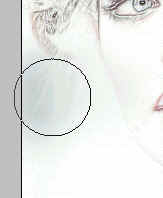
As an added touch, there is a quick way to ‘age’ the painting using a pattern fill. For instance, here is a pattern I created last night. I’ve created a new layer above the face layers, and filled it with my pattern.
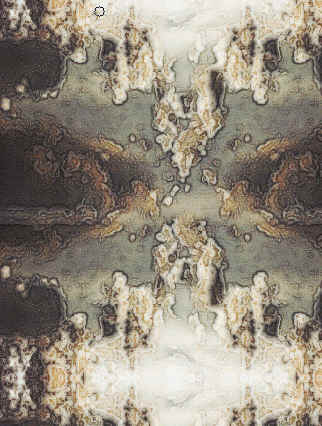
Not I’ll just set the Blending Mode for the top layer to ‘Soft Light’ and here’s the image:
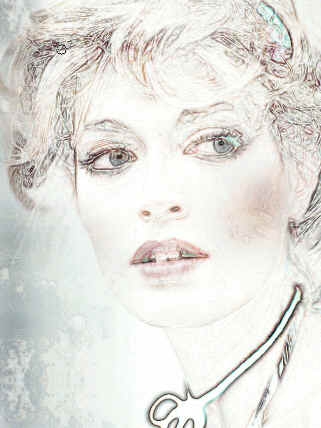
Just a quick note- I’m just finishing up dozens of add-ons specifically for Photoshop 7, so please stop back Action Fx. Take care!


an ideal way to prepare a photographic subject for painting
great corey, thanks for Detailed explanation