
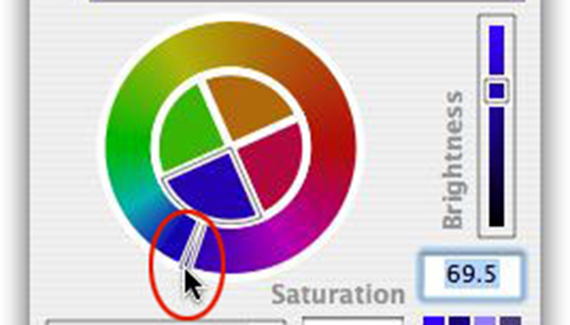
Put some spice into your Photoshop life and pick an alternate color picker! Did you know you could do that? This is a really great way to further customize the way you work in Photoshop. It’s surprisingly easy and there’s some really great color pickers available, both freeware and shareware, that make choosing beautiful, complementary color palettes a breeze. First I’m going to show you where to find these little critters, and then show you how to install my favorite one.
Hunting color pickers
If you’re using a Mac, the end-all-be-all software resource has long been VersionTracker.com. Though now it sports a “platform” option at the top right where you can also choose Windows. Just type in a keyword or software name in the search box at the top left and you’ll be presented with a neat list of options. Do a search for “color picker” and you’ll find all kinds of stuff, including Painter’s Picker. That’s the one we’re going to install today.
In the Windows world, you might also want to check shareware.com. Results are split into categories of sponsored links and download sites. Here you can also search for Mac software, though I’d be inclined to stick with VersionTracker for that. I’m old and set in my ways 😉
Why Painter’s Picker rocks
I love this color picker because it uses a color wheel instead of swatches or a big, square blob of color. How hard is it to find colors that truly work together this way? For me, next to impossible. And apparently for lots of folks creating web sites, it’s impossible for them too! Arg. I tend to grab my battered color wheel left over from art school when choosing color schemes, though with Painter’s Picker, it’s like having a virtual color theory teacher by my side to boot.
Painter’s Picker allows you to quickly find and select any color’s complementary color, and notes which colors you should stay away from, like those that clash. Choose from five kinds of analogous schemes, five kinds of tetradic schemes, two kinds of triads, four complex complementary schemes, schemes to show colors that are warmer, cooler, lighter, or darker than any given color. Wow. This may very well surpass your color theory teacher’s skill level. You can also save color schemes for use later.
Making it work in Photoshop CS2
Since I’m a Mac chick, I’m going to show you how to install it into Photoshop CS2 under OS X Tiger.
Step 1: Download Painter’s Picker.
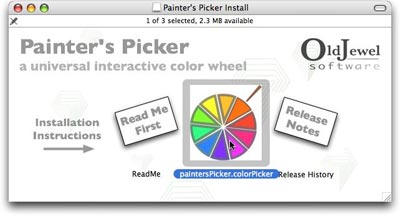
Step 2: You should see a hard drive icon appear, and a window will pop open containing a Read Me file and the color picker itself, which I’ve highlighted below.
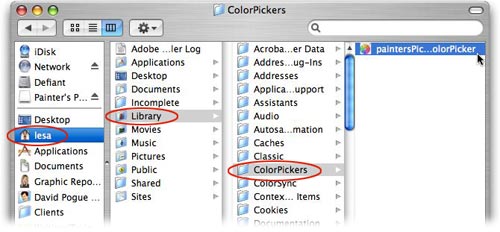
Step 3: Pop open a Finder window and navigate to your Home folder > Library > ColorPickers. Drag the paintersPicker.colorPicker file into this folder, as shown below. If you don’t have a ColorPickers folder in your Home Library, never fear. Simply create one by pressing Command + Shift + N.
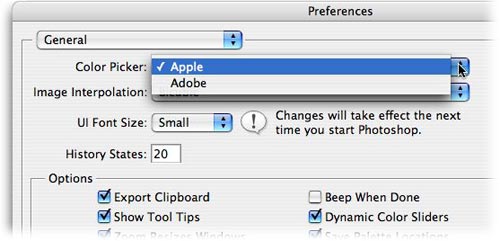
Step 4: Launch Photoshop, and choose Photoshop > Preferences > General. From the Color picker pop-up menu, choose Apple, and press OK.
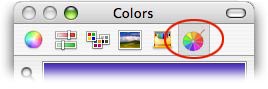
Step 5: Open a document or create a new one (unless you already have something open), and click on a color chip in the Toolbox. When Apple’s color picker opens, click on the Painter’s Picker wheel at the top right, circled in red below.
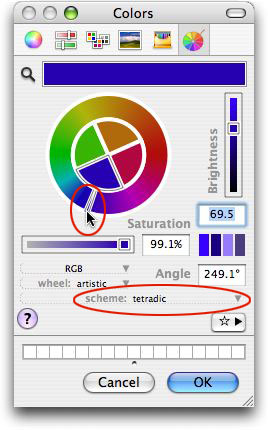
That’s all there is to it! From now on, or until you change it again, you’ll have a really powerful color picking tool at your fingertips. Just grab the little handle circled below to spin the wheel and choose other colors. Click the scheme pop-up menu to choose complementary, split complementary, triadic, etc. Hover over any of those options for a quick explanation of what they mean. Play with the brightness and saturation sliders. Below I’ve chosen a blue tetradic scheme (four evenly spaced colors).
I hope this opens your eyes to some other color picker possibilities out there, and allows you to customize your Photoshop experience even more. Until next week, happy color picking!
The Graphic Reporter
http://www.graphicreporter.com


nothing
Nice guide, but a shame we’re onto CS5, because everything changes.
I can’t install Painter’s Colorpicker in PS CS5??
Anyone got answers to why Painter’s Picker does not work with PS CS5?
Contacted Old Jewel, but no reply!!!!!
Is it just not compatible, so outdated now?
Here is a great color picker, unfortunately for Windows.
PIXA – http://avantprime.com/products/view-product/1/pixa