Great Tutorial. However, I am having a hard time with one aspect. When it comes to using the gradients ( ) I am only allowed to apply to either the top, left, right or bottom. One only. I am unable to use the gradient on more than one. How do you fix that? Help! I’m at a loss!
When you live 6.5 miles from town and it takes 20 minutes to get to town because of the narrow and twisty roads, and where the forest ceiling is so thick you can only see the stars from your gravel driveway, you are greatfulto have dial-up.
Thanks Corey, for a novice like me your videos are easily understood and I am learning so much by following the tutorials……My children are really impressed by what I am creating….Never too old to learn new tricks….
Great tutorial! But I have one problem, when I want to make the overlay from the gradient tool, it doesnt show the lines (Something further than the middle of the movie). Does anyone knows why this is happening?
Lee: You are probably using a gradient that is going from black to white (or vise versa) You need to use a gradient that goes from black to transparent.
Also make sure you have the transparency box checked to the right.
Thank you for these tutorials. I don’t have Photoshop, I have Photoshop Elements. It takes a few adaptions to figure out how to achieve some of your steps, but it can be done. Your videos give them the basics, I just improvise….and learn things I’d never have found on my own. Much thanks.
Great tutorial, thanks! I found an adaptation if you don’t like the pixel-y look that the “Fill” can cause in the selection step: If you use “Stroke” instead, you can thicken the lines, and fill in the spots. Hope that helps someone 🙂
I am unable to access the video ‘photo to drawing’ located at this web address “(insert the link here)”. Is it possible to send me the video directly or to post again so I can access it?
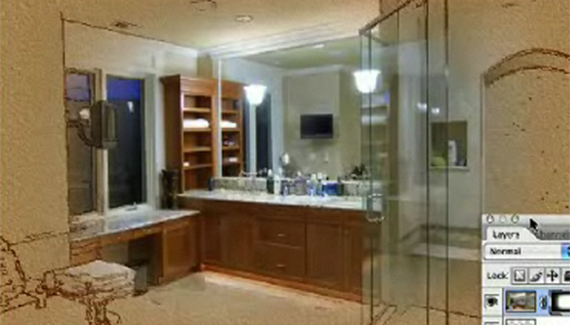



By far one of the best and most creative uses for Photoshop.
a very nice effect and very well explained
Really nice, not to hard to follow. I love these types of effects.
A very nice software and very handy to use. Creating new visualize effect will definetly enhance my creativity.
these natural and artistic effects are simply gr8……thanks alot …..very nicely xplained 🙂
There are still a lot of us who have dial-up.
This tutorial was useless.
How about words and pictures -disjointed words are not helpful!!!
I thought that it may just be one or two which were slow to load.
This site has so much potential, particularly for a teacher of digital graphics!!!
great tutorial, just awsome thanks
The effect looks really cool and the way you guys explain is really commendable.
Thanks for sharing your knowledge with novice like us.
Dial up?
Seriously?
YOU HAVE ISSUES!
very very nice .thanx for sharing…
Excellent and helpful movie for learners who want to learn through videos. It shows that how much
Excellent, creative and very goods idea. Thanx.
wow. i always wanted to know how they did that =o! this is awesome
great tut for using in local commericals for tile and interior design.
wow, i’m a total beginner to photoshop and i’m really REALLY glad i came across your videos on the internet.
thanks for sharing these techniques! 😀
Great Tutorial. However, I am having a hard time with one aspect. When it comes to using the gradients ( ) I am only allowed to apply to either the top, left, right or bottom. One only. I am unable to use the gradient on more than one. How do you fix that? Help! I’m at a loss!
Lee
Lee, you missed the part (about halfway through) where he selected the gradient tool as black to transparent. Not black to white.
You are brillaint – thank you so much – now if only i knew how to make a black to transparent gradient as it appears i dont have one
When you live 6.5 miles from town and it takes 20 minutes to get to town because of the narrow and twisty roads, and where the forest ceiling is so thick you can only see the stars from your gravel driveway, you are greatfulto have dial-up.
Thanks Corey, for a novice like me your videos are easily understood and I am learning so much by following the tutorials……My children are really impressed by what I am creating….Never too old to learn new tricks….
Great tutorial! But I have one problem, when I want to make the overlay from the gradient tool, it doesnt show the lines (Something further than the middle of the movie). Does anyone knows why this is happening?
very cool tutorial you have there…
I used it to make some real cool effects on my images..
Thanks…
Lee: You are probably using a gradient that is going from black to white (or vise versa) You need to use a gradient that goes from black to transparent.
Also make sure you have the transparency box checked to the right.
Thank you for these tutorials. I don’t have Photoshop, I have Photoshop Elements. It takes a few adaptions to figure out how to achieve some of your steps, but it can be done. Your videos give them the basics, I just improvise….and learn things I’d never have found on my own. Much thanks.
Great tutorial, thanks! I found an adaptation if you don’t like the pixel-y look that the “Fill” can cause in the selection step: If you use “Stroke” instead, you can thicken the lines, and fill in the spots. Hope that helps someone 🙂
Beautiful effect!
I loved every steps of that tutorial! Thank you so much for your good work
gisèle
Hello,
I am unable to access the video ‘photo to drawing’ located at this web address “(insert the link here)”. Is it possible to send me the video directly or to post again so I can access it?
Thank you very much,
Rodrigo
Fantastic!!! help me for art disign,thankssssss