Sponsored by the National Association of Photoshop Professionals. Learn More
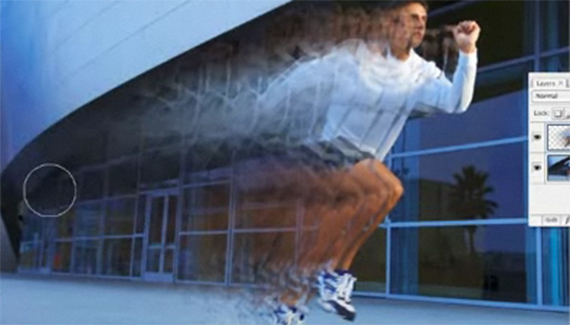
Using custom brushes and the smudge tool to create an interesting motion blur effect.
RSS feed for comments on this post. TrackBack URI
Recreate the text effect from the title to the new blockbuster movie.
Continue exploring the possibilities with Photoshop’s new 3D tools.
Corey shows you how to make a new photo look damaged by blending in some unusual textures.
Use Photoshop’s new 3D tools to create some dazzling background effects.
When I’m done working with an image, I like to sit and admire it (hey, I spent six hours working on it, I should). To do that, I hit the Tab key, then hit the F key three times. This hides all of the panels and toolbars and lets you see the image by itself surrounded by black. To get back to regular mode, press the F key and the Tab key one more time.
thug_life said on — March 30, 2008 @ 11:45 pm
wow dude that tutorial is sick thx man
Need to remove a background from your photo? | Pingback on — April 16, 2008 @ 9:38 am
[...] http://www.planetphotoshop.com/painting-motion.html [...]
Captain Lenny said on — May 28, 2008 @ 8:15 pm
If you were my college math teacher. . .I would have my degree now!
everything is clear and concise
plus it’s just plane COOL
Donotexist said on — June 4, 2008 @ 7:33 am
love your tutorial~~^^
Libby said on — June 29, 2008 @ 9:16 am
Great tutorial!
Mine worked great!
Addicted to Design Blog » Blog Archive » Painting Motion Blur in Photoshop (Video Tutorial) Pingback on — July 17, 2008 @ 2:24 pm
[...] Sport Brands and is usually achieved with multiple exposures while the subject is moving. In this video tutorial you will learn how to achieve the same effect from a single photo. (Video Tutorial by Corey [...]
Andey17 said on — August 23, 2008 @ 12:53 am
That last effect on the text was very impressive..how did you do that????
mickchard said on — September 4, 2008 @ 12:01 pm
Hi, first of all love all the tutorials and also thanks as they have taught me a lot I am a total novice but am having a little trouble. when I select the smudge tool or brush tool it just appears as a crosshairs with a dot in the middle instead of looking the like the outline of my image??? how can i rectify this please?? thanks
mickchard said on — September 4, 2008 @ 12:03 pm
ps i would also love to know how you did the last “flash” effect on the text!!
nikhil said on — October 1, 2008 @ 2:42 am
this is a masterpiece.
I love your all tuts
Best of the web / Creative Ads : Volume 3 / La création audio nouvel eldorado des RIA / création audio, creative ads, ria / En vrac Pingback on — October 19, 2008 @ 1:16 pm
[...] finir, un petit lien vers un tuto intitulé Painting Motion qui m’a bien [...]
haya said on — March 30, 2009 @ 12:59 pm
THANKS A LOT U R THE BEST
GOURMAND said on — May 22, 2009 @ 11:42 am
Dear sirs,
Can somebody help me with a function that I can’t realise in CS4. I try to “Select” the picture after define the runner. This is impossible in SC4 because when I clic on selection, I have several possibilities; select all ; deselect ; ,,,
Thanks for your help, Danny
56 Absolutely Brilliant and Intriguing Photoshop Video Tutorials | Photoshop Tutorials Pingback on — September 4, 2009 @ 4:55 am
[...] Painting MotionUsing custom brushes and the smudge tool to create an interesting motion blur effect. [...]
56 Absolutely Brilliant and Intriguing Photoshop Video Tutorials | Internet Marketing Tips and Strategy To Make Money Online Pingback on — September 4, 2009 @ 6:24 pm
[...] Painting MotionUsing custom brushes and the smudge tool to create an interesting motion blur effect. [...]
56 Absolutely Brilliant and Intriguing Photoshop Video Tutorials | huibit05.com Pingback on — September 5, 2009 @ 5:32 am
[...] Painting Motion Using custom brushes and the smudge tool to create an interesting motion blur effect. [...]
56 Absolutely Brilliant and Intriguing Photoshop Video Tutorials « Photoshop.vn – Your Design Resource Pingback on — September 5, 2009 @ 6:12 am
[...] Painting Motion Using custom brushes and the smudge tool to create an interesting motion blur effect. [...]
56 Absolutely Brilliant and Intriguing Photoshop Video Tutorials | Fulldigi Pingback on — September 9, 2009 @ 5:41 am
[...] Painting MotionUsing custom brushes and the smudge tool to create an interesting motion blur effect. [...]
Photoshop Video Tutorials | My Tech way Pingback on — September 11, 2009 @ 11:25 pm
[...] Painting Motion Using custom brushes and the smudge tool to create an interesting motion blur effect. [...]
56 Absolutely Brilliant and Intriguing Photoshop Video Tutorials Pingback on — September 17, 2009 @ 9:23 pm
[...] Painting MotionUsing custom brushes and the smudge tool to create an interesting motion blur effect. [...]
hi said on — September 26, 2009 @ 11:03 pm
hey i got a problem okay when u used the lasso tool and then pressed cntrl j to make it into a layer and into a brush when i did that with my image it also included the background how did u turn on the lasso on new layer to show withought getting background
Brilliant and Intriguing 50+ Photoshop Video Tutorials | oOrch Blog Pingback on — October 5, 2009 @ 9:20 am
[...] Painting MotionUsing custom brushes and the smudge tool to create an interesting motion blur effect. [...]


