First sorry for my spelling, I’m speaking french, so i have a little problem with my english.
Now, i most say that you’re a great inspiration in my creation on photoshop, your tutorials have helped me allot, I’m not a fan of twilight, but the effect is great for other projects, thanks for sharing your knowledge with all of us, I’m always looking forward for your next tutorial, your easy to follow and your methods are easy to put in practice for nice effects in our projects, i may not be a fan of Twilight, as i said, but I’m a fan of your work.
I love your tutorials! I want to especially thank you for always showing or verbally speaking the shortcuts. I have noticed lately, that I’m saying some of the more common shortcuts along with you (guess I’m learnin’). You have taught me more than any other source out there! Thanks again.
Hi Corey,
I follow your tutorials with great enthusiasm. Though I understand only few english words, I’am astonished of your ability. All seem easy but when I try everything becomes very very hard! Sorry for my spelling.
Thanks for all.
Aldo (from Venice).
Hi there Corey
Firstly, my name is Gustavo Lyra, I come from Natal-RN, Brazil.
I have found the photoshop world very recently unfortunately and am trying to learn as fast as I can. I must say, it is extremely addictive! Whenever possible I watch the videos tutorials to be able to get to know more all about this fantastic program.
Secondly, I would like say a big thank you for all the tips and the knowledge you have been passing to us. What a beautiful and grateful job.
I have been trying to get some of your magazines, books and DVD, but unfortunately here in Brazil is a bit difficult to find them. Would you be so very kind as to let me know how I get some of the above mentioned items.
I look forward to hearing from you.
Best to you,
Gustavo Lyra
@DigitalSmigital: I thought the same thing. Use the drop down menu to find the different categories of textures available and append to your list. I think I found Ant Farm under the “Artistic Surfaces”. HTH!
And this is a way cool tutorial, but for some reason, the pen segments are not working for me. I click “stroke path”, follow the instructions to a tee, but nothin’ shows. 🙁 Anyone else having this issue?
So simple and yet so great. Thanks for yet another awesome tutorial. Not only the results but also your way of explaining what you are doing making up a great tutorial. I can not count the number of small tricks I have picked up watching your tutorials.
Corey, thank you so much, you have helped me understand photoshop more and more, with your help I am excelling in my classes at the Art Institute, this tutorial was great.
Thank you.
This was a great tutorial. I noticed that your tutorial showed you making new streaks, and when I did that, I had to click on the ‘add new path’ button on the paths in order to get a new one. I didn’t see that done in the tutorial – I had a little trouble with it until I figured it out. Maybe I did something wrong?
I really have to say I stumbled upon your site and have found it a great inspiration to me as an amateur designer. You are very good at your work and make the tutorials too easy to be true, yet they really are. Thanks a lot for sharing this with us 🙂
Hey im having some trouble doing this. when i get up to the part after i have drawn the line with the pen tool were i have to go to paths and click stroke path ..its not letting me click on stroke path ??? would you know why?? ive done everything u said so far
oh and also on my layers panelle, you know how on yours on we do that it doesnt come up with the shape on your new layer that you made , it does on mine??
very nice job, i can learn a lot with you’re video thank you for charring
i also know a site that is http://www.photoserge.com I’m sure it could help someone to see his video that are also great
continue you’re job it is truly source of inspiration
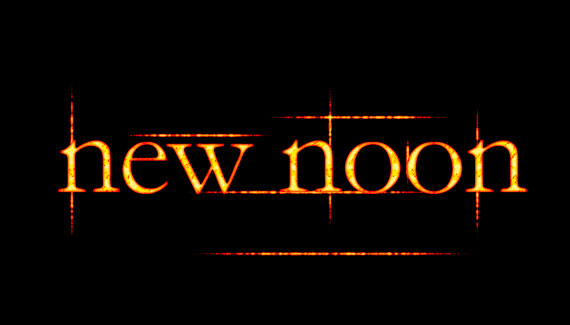



COOOL!
Thanks for all ur videos…
Cool. I love your videos.
Corey, your great.
First sorry for my spelling, I’m speaking french, so i have a little problem with my english.
Now, i most say that you’re a great inspiration in my creation on photoshop, your tutorials have helped me allot, I’m not a fan of twilight, but the effect is great for other projects, thanks for sharing your knowledge with all of us, I’m always looking forward for your next tutorial, your easy to follow and your methods are easy to put in practice for nice effects in our projects, i may not be a fan of Twilight, as i said, but I’m a fan of your work.
Once again, thanks for knowledge.
great tutorial
thanks alot
Do any one knows whats the font used???
thank’s a lot your videos realy help me and very nice
I love your tutorials! I want to especially thank you for always showing or verbally speaking the shortcuts. I have noticed lately, that I’m saying some of the more common shortcuts along with you (guess I’m learnin’). You have taught me more than any other source out there! Thanks again.
Thanks Corey!
Nice tutorial Cory – thanks. Could I ask what plugin you use for the “spread the word” links on this blog?
Hi Corey,
I follow your tutorials with great enthusiasm. Though I understand only few english words, I’am astonished of your ability. All seem easy but when I try everything becomes very very hard! Sorry for my spelling.
Thanks for all.
Aldo (from Venice).
The font used is “Arabic Typesetting”
And thanks Mr.Corey you are really gr8
sorry I meant “Aparajita”
Thanks very nice
Thanks from Hungary.
Very Nice tutorial Cory – thanks
very cool, thanks.
Great tutorial! Really usefull…
Hi there Corey
Firstly, my name is Gustavo Lyra, I come from Natal-RN, Brazil.
I have found the photoshop world very recently unfortunately and am trying to learn as fast as I can. I must say, it is extremely addictive! Whenever possible I watch the videos tutorials to be able to get to know more all about this fantastic program.
Secondly, I would like say a big thank you for all the tips and the knowledge you have been passing to us. What a beautiful and grateful job.
I have been trying to get some of your magazines, books and DVD, but unfortunately here in Brazil is a bit difficult to find them. Would you be so very kind as to let me know how I get some of the above mentioned items.
I look forward to hearing from you.
Best to you,
Gustavo Lyra
my default textures only has the bubbles and one other one, is that because I don’t have CS4 extended?
Thanx corey!
@DigitalSmigital: I thought the same thing. Use the drop down menu to find the different categories of textures available and append to your list. I think I found Ant Farm under the “Artistic Surfaces”. HTH!
And this is a way cool tutorial, but for some reason, the pen segments are not working for me. I click “stroke path”, follow the instructions to a tee, but nothin’ shows. 🙁 Anyone else having this issue?
Great tutorial!Many thanks for the job u’ve done
you are simply great corey! and technique you used theat make things so easy
again thanks a lot
Thanks Corey…. simple and effective.
Cheers.
PS I was curious if there was a part two to the colour theory piece?
i like u cool effect
So simple and yet so great. Thanks for yet another awesome tutorial. Not only the results but also your way of explaining what you are doing making up a great tutorial. I can not count the number of small tricks I have picked up watching your tutorials.
Thanks!
Hey Corey, great tutorial, like always thanks!
Great tut!! i made a WP of it.
watch it, nice or not?
http://i231.photobucket.com/albums/ee91/0Masterblaster0/wp3.jpg
Corey, thank you so much, you have helped me understand photoshop more and more, with your help I am excelling in my classes at the Art Institute, this tutorial was great.
Thank you.
This was a great tutorial. I noticed that your tutorial showed you making new streaks, and when I did that, I had to click on the ‘add new path’ button on the paths in order to get a new one. I didn’t see that done in the tutorial – I had a little trouble with it until I figured it out. Maybe I did something wrong?
Love it!!!!!!!!
What is the font?
I really have to say I stumbled upon your site and have found it a great inspiration to me as an amateur designer. You are very good at your work and make the tutorials too easy to be true, yet they really are. Thanks a lot for sharing this with us 🙂
Hello Corey. What font did you use in this tutorial? It is such a great tut.
You rock, man!
@Ahmed thanks for the font name
@ Kristen thanks for the tip on the textures!
Is there any source, where I can download your videos? You’re really great and should think of having your own podcast!
thanks alot i am from the caribbean and classes are kind of hard to find in tobago so thanks alot for you help your the beast
Hey im having some trouble doing this. when i get up to the part after i have drawn the line with the pen tool were i have to go to paths and click stroke path ..its not letting me click on stroke path ??? would you know why?? ive done everything u said so far
oh and also on my layers panelle, you know how on yours on we do that it doesnt come up with the shape on your new layer that you made , it does on mine??
I’ve also noticed if you put a black to white gradient map, on multiply at 50% opacity, It’ll make it darker, appearing as in the movie logo.
Hi ya, I know this might sound stupid but, where can i find the font?
very nice job, i can learn a lot with you’re video thank you for charring
i also know a site that is http://www.photoserge.com I’m sure it could help someone to see his video that are also great
continue you’re job it is truly source of inspiration
( excuse my writing i am french )
Oooo 🙂 Really cool tutorial 😀
I like it. 10/10
Nice tutorial
Thanks
i rate it 101/100 😀
you’re a pro!!!!!!
Nice effect. I want to try it for the menu in the small flash game.
where did you get the text
from?
Some times simple can be very effective, like in this example.
Nice tutorial Corey,
cheers.
PJ
HWP.
I learned a lot. 🙂 Thank you so much for this tutorial. 😀
what font your using. I need to know in the next 5 minutes.
Can you do that? CAN YOU DO THAT?
Thanks
Me, You and your Best friend 🙂