Thanks. This works great on white backgrounds but could channels be used for images such as this: http://www.janetedmunson.com/img/edmunson_portrait004.jpg?
The background and foreground do contrast, but I cant find an effective way to enhance that contrast in order to use it for selection.
Could you give us some pointers for photographs such as these?
WONDERFUL!! I have been looking for something like this all morning. I had nailed the overlay / channels but couldn’t understand what was going wrong – no other tutorial had mentioned about inverting the selection!!!
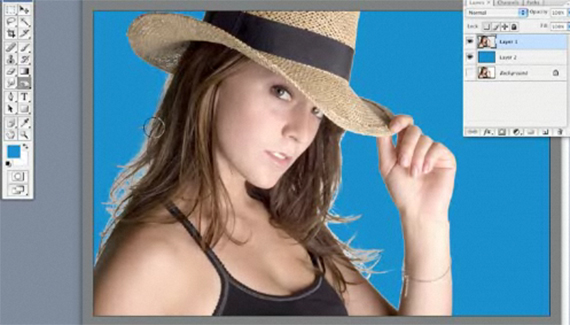



AWESOME!!!
great tutorial!
Thanks. This works great on white backgrounds but could channels be used for images such as this: http://www.janetedmunson.com/img/edmunson_portrait004.jpg?
The background and foreground do contrast, but I cant find an effective way to enhance that contrast in order to use it for selection.
Could you give us some pointers for photographs such as these?
Thank you!
Great it looks so easy, some day I to will be good.
loooooool nice job
it is realy amazing
keep it up ^_^
Whooooo! Fantastic job.
To date without any doubt the BEST MASKING Tutorial I’ve come across.
I’ve be following ALL of your turorials.
Great Job
Your tutorial is very good. But my doubt is if the background is not white? Can we apply this method ?
Man thanks a bunch this is a life saver. I really needed this.
WONDERFUL!! I have been looking for something like this all morning. I had nailed the overlay / channels but couldn’t understand what was going wrong – no other tutorial had mentioned about inverting the selection!!!
THANK YOU!
Thank you it really help me understand channel.
I have been looking for something on this for some time. Great tutorial thx Corey. Perfect!!!!!
OMG That was very helpful and easy to understand. Thank you so much for all your awesome tutorial. You are the BEST!!!
Great tutorial. But do you think there’s any chance a masking tutorial will be done that deals with complex backgrounds?
THANX FOR SHARPENING ME , GREAT TUTORIAL!!!