this is really cool stuff. i’m a junior in highschool and i’m currently taking a photoshop class. i have to say i think i have learned more on this sight than when i’m listening to my teacher! its real nice to be able to watch and see the end result than to listen and not see.
i love this sight!
EJ
Corey, your tutorials consistently remind me that experimentation is full of “happy accidents” as the late Bob Ross would say. You excel at demonstrating detailed procedures, sharing techniques and explaining Photoshop concepts. That said, the “raised-bar” quality of your tutorials owes to all of the visual fun (some call it eye-candy) that you share with us. Keepin’ it fun, therein lies the magic!
I can’t tell you how glad I am that I found this site and your tutorials. Each one is such a fun project that I can’t wait to do it, short enough to give me a finished product in one setting, and teaches me 5 to 10 new techniques because I came here having done almost nothing with Photoshop before. I am learning everything, basics to advanced techniques, about the program by going through your great tutorials. I only have Elements (and only Elements 3 at that since I had only done basic photo fixing and saw no need to upgrade) and I can still do at least 90% of your tutorials – sometimes by experimenting because tools are named or presented differently than in Photoshop proper. I hope others with Elements get to this site and realize how powerful our little program is. In just what I learned here in the past week I designed several very cool t-shirts for friends that I can have printed at Cafe Press or another print shop – some of them would be good enough to sell were I so inclined. Thank you for your great fun lessons!
Hallo Sir Barker, I am impressed with your tutorial. But in this case, the Shape Dynamics option does not change the shape of my brush. The brush remain same. Please help. Regards,
i just want thank you for the amazing tutorial, you are truly a blessing to the photo shop team. by the way i noticed you don’t have a favicon for your site, or might just be my browser.
I just wanted to say thank you, because I was busy on a new project.
I couldn’t find out how to make your own halftone brush, because I needed it to follow a tutorial from internet 😉 They showed ‘Radius at 20, and all the 4 Channels at 4, but then i get 1 dot, haha)
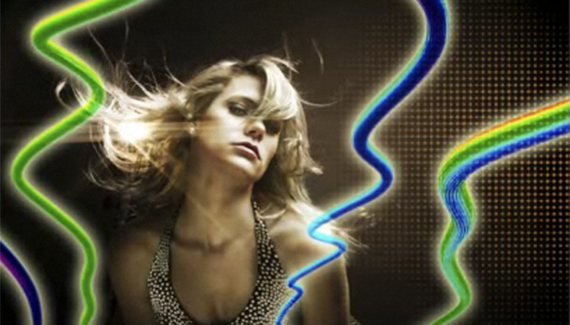



Cool effect. How in the world do you come up with these things? Nice
another fantastic tut thankx
wow very good tut.tnx alot
Very cool effect. Thank you.
Corey is definitely a photoshop/design genius !
Very Very NICE!
this is really cool stuff. i’m a junior in highschool and i’m currently taking a photoshop class. i have to say i think i have learned more on this sight than when i’m listening to my teacher! its real nice to be able to watch and see the end result than to listen and not see.
i love this sight!
EJ
Corey, your tutorials consistently remind me that experimentation is full of “happy accidents” as the late Bob Ross would say. You excel at demonstrating detailed procedures, sharing techniques and explaining Photoshop concepts. That said, the “raised-bar” quality of your tutorials owes to all of the visual fun (some call it eye-candy) that you share with us. Keepin’ it fun, therein lies the magic!
well done mate
This tutorial made me want to go get a tablet!
I can’t tell you how glad I am that I found this site and your tutorials. Each one is such a fun project that I can’t wait to do it, short enough to give me a finished product in one setting, and teaches me 5 to 10 new techniques because I came here having done almost nothing with Photoshop before. I am learning everything, basics to advanced techniques, about the program by going through your great tutorials. I only have Elements (and only Elements 3 at that since I had only done basic photo fixing and saw no need to upgrade) and I can still do at least 90% of your tutorials – sometimes by experimenting because tools are named or presented differently than in Photoshop proper. I hope others with Elements get to this site and realize how powerful our little program is. In just what I learned here in the past week I designed several very cool t-shirts for friends that I can have printed at Cafe Press or another print shop – some of them would be good enough to sell were I so inclined. Thank you for your great fun lessons!
This is just BRILLIANT! amazing.!
hi there, i saw the other day a tutorial in wich you can create a phone, please could you make a tutorial about that??? thanks.
Hallo Sir Barker, I am impressed with your tutorial. But in this case, the Shape Dynamics option does not change the shape of my brush. The brush remain same. Please help. Regards,
Krish
copied….the Shape Dynamics option does not change the shape of my brush. The brush remain same. Please help
hello correy
i just want thank you for the amazing tutorial, you are truly a blessing to the photo shop team. by the way i noticed you don’t have a favicon for your site, or might just be my browser.
thanks a mill
thom
YEAH !? It`s very nice 🙂
Where did the video go to?!
I can’t see the video, all I see is a Layers magazine add… I could see all the other tutorials wich are excellent by the way.
Aviz
this was awesome.. my first time looking at this site.. gives me allot of tip.. thanks 😀
That is one of the coolest things I have seen in a long time in Photoshop.
Hi,
I just wanted to say thank you, because I was busy on a new project.
I couldn’t find out how to make your own halftone brush, because I needed it to follow a tutorial from internet 😉 They showed ‘Radius at 20, and all the 4 Channels at 4, but then i get 1 dot, haha)
Thanks!