Corey, thanks so much for all of your insightful tutorials. I learn new things from you on each episode. All of the shortcuts you mention are incredibly helpful, as well. You have a good teaching style. So again, thanks! I appreciate your offering these. 🙂
trying to do this tutorial but I have PSE 6 and I can’t seem to get the guides to stick? after activating the rulers and dragging accross…am I doing something wrong or can I not do this in PSE 6?? Pls advise…
Thx
Penni
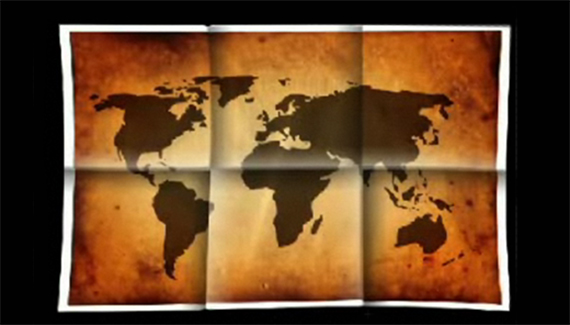



this is a very thural tutorial….
i think u did a very good job!!!
I love dis tutorial and hope dat I can learn alot more stuff like dis in “COMPUTER” class.
L.O.L.
Thanks for a great tutorial. It really taught me a lot.
Exactly what i wanted!!!!!!!!!!!
Ive been looking for this for 2 months!!!!!!!!!!!!!!
Thanks a million
Corey, thanks so much for all of your insightful tutorials. I learn new things from you on each episode. All of the shortcuts you mention are incredibly helpful, as well. You have a good teaching style. So again, thanks! I appreciate your offering these. 🙂
its nice and cool
Awesome tutorial!
Also, I skiped the very last step, and instead of that, I clicked on :
Filter > Displace
It really gives an intresting look too!
Brilliant Tutorial. Thanks for this. Exactly what I needed.
Would it kill you to provide an “after” image so I could see if I want to sit here for 7 minutes to decide if I even want to do this tutorial?
What an incredible tutorial. Thank you so much for your help. I have been looking for a site like this. Kudos!
WOW this tutorial is awesome! thx a bunch!
Penni
trying to do this tutorial but I have PSE 6 and I can’t seem to get the guides to stick? after activating the rulers and dragging accross…am I doing something wrong or can I not do this in PSE 6?? Pls advise…
Thx
Penni