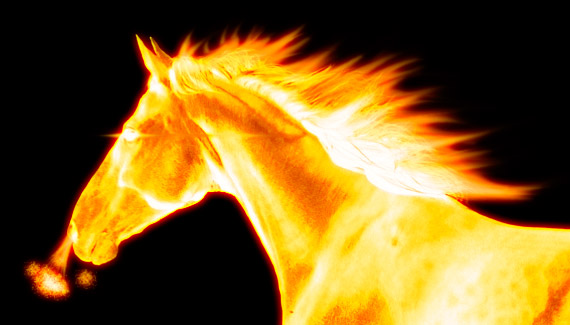
After creating a brush pattern from a stock image of a horse, Corey applies a layer style consisting of outer and inner glows with a hard light blend mode to create the flame effects.

After creating a brush pattern from a stock image of a horse, Corey applies a layer style consisting of outer and inner glows with a hard light blend mode to create the flame effects.


Very nice. I love it.
Thank you for posting this! It was definitely the coolest thing I learned at PSW 🙂
Very cool. Im gonna test it out right now
hey how did you get the picture of the horse or any pic into photoshop where you could select it with that rectangular tool.
Very nice Corey. Looks good… Gonna go and try it right now.
Amazing tutorial as allways, i have learned so much from you about photoshop !
good work
Excellent effect. I can see many uses of this effect. Thanks for sharing. vmc
love your work, keep up the good work!
Where do you get these great photos and renders for this stuff. Nice tut.
Hello friend, I am Brazilian, I understand very little of English, but their classes are expetaculares video! learned quite there. Thank you for teaching.
No Comment, simply you are amazing, and thank you for every thing, god bless you man,
KEEP GOING 🙂
this is really cool! i’m following all your instructions, even using the same picture and exact same colors for the outer and inner glow, but my horse is extremely red, and not firey looking at all. when i do the layer mask, it just selects the whole thing and darkens everything. can anyone figure out what i’m doing wrong?
thanks in advance, and thanks corey for all yout tutorials!
I’m having a problem when it comes to deleting the bruch mark after adding the the inner and outer glows the layer background goes to black unlike yours stays white transparent
very cool
great tutorials you’ve got, its really a big help.
please post more of these tips and thank you for sharing
off the hook. i can use this
Really Cool!
And very helpfull, Thanks!! 😀
wow
Totally awesome! You rock laddie!!!!!!!!
http://www.photoshopuser.com/members/portfolios/view/image/142942
Hey Corey,
Way cool effect. It amazes me the neat effects you create with only a few simple actions!
excellent, wonderful. ……………………….i really love it
thanks from mexico
Sweet, Thank You very much for the lesson Corey.
Love it
Awesome! You rock man!
OMG u r genius man simply the best
CB,
Luv’d it! I used this immediately on a project …thanks. When can we expect more dvd’s and books from u?
B.
wow, thats amazing ^.^
brilliant wrk!!!!!
Rosie, make sure you have the blending mode set correctly when you apply the layer styles. Then when you use the brush click 2 or 3 times in the same spot to intensify the image, play around with what works best for you… I had the same problem to start!
Corey… brilliance.
i cant SaY woW,.,.,.!!
This is a great thing!!
Nice one, again, Corey! Well, I am still a poor moneyless guy, so I couldn’t afford to go to Photoshop World, but, hey, if you tough this one there, it is a penny I saved! Thank you very much, and, from this, I picked it up and wen’t straight to my girlfriend helping her doing it also… Quite, quite, quite nice…!
Thanks
Hope to see you on next tutorial, which, I believe, is already done, the one with the vector mask! See ya, man! And thanks again!
Márcio Guerra
excellent !
thanks a lot
I like this….really very simple and wonderfull. 😉
Totally awesome!
Your videos leave me breathless, they are so good! Your skills are amazing Corey!
I’m definitely going to be watching it many more times…
Thank you.
Wow….. Now I am realise how powerfull photoshop is. By the way well done!
Corey is the best! Thank you
its nice but its really confusing to me!
i think i would need it to be more layed out and easyer to understand!
thanks bunches
It is amazing, I loved that horse. I will it tryed.
Thanks corey
all regards
You never cease to amaze me corey.
Just simply awesome!
Your tutorials are the best 🙂
Is the “FIRE BRUSHES” tutorial available in print?
Very nice tutorial, thanks!
Very nice effect! Great stuff!
you’ve done something i’ve always tried to do and now i know how. thank you for the excellent tutorials
Wow this is simply awesome! The idea of deleting the contents of a layer while keeping the layer styles intact saves me the trouble of copying and pasting layer styles onto a new layer. Plus, I’ve never knew glow works so well to create a fiery effect!
Thanks for sharing!
I love this!! do u prefer adobe photoshop 6.0 or photoshop CS3/CS4??
Best tutorial I’ve seen!!! Thank you, sir!!! 😀
sorry can you help me if i do all that and i want to put this brush it says that i dont have enough memory (ram) is that thinking on my computer ram memory or photoshop memory?
wow, cleaver and beautifull.
You are a genious. Great tutorial!
thank guy, you help pass a class
wow how can i d/l thes tuts ?? i mod games i pant cars in pc race games and i love thes tuts i ues this 1 all the time 2 make flames on the paint/skins of the cars
denver co
saying
thx
Simple and Good… Thanks!
Nice explaination & fentastic effect………Thanking you…
Its really awesome tutorial, thanks for ur innovative idea
Wow thanks for sharing this tip I will try to master this & use it in my digital art work A++
Anyone know where to get the image of the horse?
thx for sharing! its realy useful in designing!! great dude!
This is cool!
Simply amazing i tried it with a picture from myself looked pretty cool XD
FANTASTIC thanks again
good
Vary Nice!
Amazing!
Thanks so much you are fantastic at thinking these things up! – Where on earth do you start?
Hi i was looking to play this from the main selection list on your blog, but the link is broken, so i’m watching this cashed version from google chase, i hope this tut doesn’t disappear, it’s a great tutorial 🙂
Hey man i just find your site and i love in it, this tutorial is great thanks man 🙂
I’ve always wanted to know how to make pictures look like they are on fire, but I never knew it was so simple! Thank you so much, you’re amazing!
How do you get the gradient to become the colors…can’t figure it out
how about trying it with a man on fire. like Human torch or something like jessica alba in fantastic 4. half of the body is on fire and the other part is normal, or like a man holding a ball of fire?.. it’s really cool!!. Hope you can teach us that..
with this and the others i’m learning a lot. Thanks for allowing us to learn from here.
Corey, is there a way to make someone or even a horse into Ice? I love this fire effect, and if you could turn someone into Ice with the same effect, could you show us? I cannot seem to figure it out.
Amazing! ! ! Great Tutorial…
Thanks for this great tutorial. It let me do this…
(with the able assistance of Redfield’s Fractalius)
http://www.flickr.com/photos/21325467@N03/4031315227/
YOU’RE THE MAN !!! i swear
I’m guessing you can’t do this with photoshop elements 7.0 🙁
DONE! Thx :)))
Great tip looks great! Thx!!
nice pic,just wanna know what software are you using,
Awesome! Can you do this in Gimp, too? Because I lack the funds to purchase Photoshop, I would love to make it anyway.
Are you a great great video
you rock!!!!
Awesomely Great Tutorial: Very Information & Intricately Detailed! Thanks for Posting.
Should Def. Check-out http://www.MadMediaMonkey.com
I’m not quite sure if you like to see what people have made from your tutorials, but I figured you can take a look if you want.
I started out with this image: http://bit.ly/a7qWDp
And using your “fire” tactics and some other skills, ended with this: http://bit.ly/cRmGec
Thanks for the help! Love your videos
hello !! your tutorial is fantastic….i’ve been trying certain things for many days but now i know more about photoshop !
awesome tutorial by the way =)
i love photoshop and editting pics…although i’m just a thirteen-year-old…!
thnx a bunch !! u ROCK =D
WOW!
I love it!
This help me to know more about Photoshop applications.Please do send me more updates about new techniques and procedures.
Thank you Mr. Corey Barker.More power to you and your company.
wow its amezing
cool! verry nice and easy way to create a real fire figures!
After creating a fire image, i started a new project but unfortunately i cannot make the outer glow and inner glow working, the image is always comes in grey. What should i do. Already reset the photoshop cs 3 in its default settings. Thank you and more power.
I see your point, great work, can’t wait for more updates
stegna noclegi domki
am new to this site its help me log after see this site.thanks for tat
thank u. it’s very useful.
Great tutorial, just what I was looking for, works great even on transparent backgrounds!
Incrivel, muito legal, adorei !!!
Nota 10 – Tentar explica passo a passo !
Brasil represetando.
Where did the video go? I loved this tutorial!