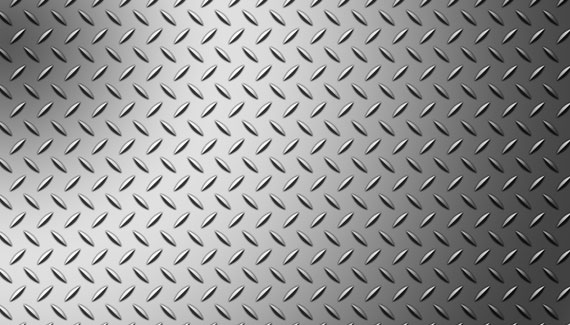
In this tutorial Corey demonstrates the powerful integration between Photoshop and Illustrator to create a realistic diamond plate effect.

In this tutorial Corey demonstrates the powerful integration between Photoshop and Illustrator to create a realistic diamond plate effect.


Very nice, btw first comment
Brilliant, Corey! Thank you for this, it was very enlightening. I wasn’t aware of Illustrator’s transform capabilities. This will make me look into it some more. Thanks!
nice as always 😉
One more hit…….very nice Corey.You should teach us more Illustrator stuff!!!!!!!!!
Cool.
When do we learn Cs5 (Photoshop)?
I Dont Know?
That was *COOL* but when do we learn Photoshop Cs5?
@marino Now that would be nice but more accurate for a sight called “Planet Illustrator”… 🙂
nice!!!
from Laos!!
Nice Corey! Love the Illustrator and Photoshop combo
Thank you very much corey! Really appreciate it!
I don’t get something. When I open illustrator I get a huge screen and the scroll things are really small what do i do?
that was a fantastic tut, I love illustrator, but I am not as well versed in it as I would like to be. I saw you yesterday on the NAPP webinar and really enjoyed that class. thanks for the inspiration.
nice tutorial see written tutorial here
http://nextbarisal.com/english/graphic_design.php
Very Usefull
Thanks.
You are a wealth of knowledge, man.
Wow.Connor is SOOO such a dick-head,being rude and all…
Corey,awesome job,as usual…
Really nice tutorial!
Great example of integration between the two apps and how to leverage the best features of each for a given task. Would love to see more examples of this in the future. Thanks so much!
Wish I could see this on my ipad
Thanks a lot Corey. I had to watch this tutorial and learn that Illustrator transform trick so that instead of doing all my household chores on Sunday I wasted 3 hours futzing around with this and making all kinds of goofy designs with it. Thanks!
Brilliant, Corey! Thank you for this, it was very enlightening. I wasn’t aware of Illustrator’s transform capabilities. This will make me look into it some more.You are a wealth of knowledge, man. Thanks!
From,
Kerala
thank you very much, their tutorials are the best of the Web.
thank you very much
thank you very much
thank you very much
thank you very much
thank you very much
thank you very much
This is very beautiful design tutorials. It is helpful to develop my Photoshop skills. Thanks for the sharing.