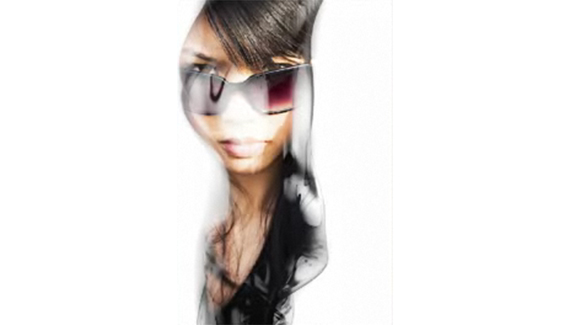
Here’s a technique from Corey for creating an interesting effect by using an alpha channel from one image, bringing it over to another image and creating a layer mask from that selection. Check it out and follow along.

Here’s a technique from Corey for creating an interesting effect by using an alpha channel from one image, bringing it over to another image and creating a layer mask from that selection. Check it out and follow along.


Awesome tutorial, really handy , and just open my mind even more , WONDERFUL WAY OF EXPLAINING, GOD BLESS YOU, THANKYOU FOR HELPING PEOPLE.
I was totaly noob in photoshop before i watched this.
THX!!!
This is more then good explanation. Excellent! Thank you thank you
Thanks for the AWSOME explanation. Every small detail is carefully explained with tips on a few shortcuts. Keep up the great tutorials please!
Thank you SO much for this tutorial! I have been surfing for hours, looking for a better alpha layer tutorial, and this is it! Thank you!
Hi Corey, must say my initial reaction to this tutorial was one of total annoyance, WHY, OH WHY, had I not found this sooner! You explain every move simply, and without any fuss or technical jargon. I found this brilliant, and will be tuning in for more tutorials in future.
Cheers
John
YNWA
YOU ROCK!!!!!!
i really like this tutorial.
its simple and easy to learn
and i really thank for this tutorial…
i’ve been trying to find this tutorial for days and at last i finally found it ^_^
Hey thanx for this awesome tutorial !!!!…I never did understand alpha channels and how to use them, but this tutorial explains eveything very precisely…!!!!!! Thanku once again 🙂
awesome!
Very helpful. Thanks.
May God bless your soul…..
Awesome tutorial, good job
thanks!
Hi Corey,
I love your tutorials. Thanks once again for this one. You inspired me to think outside the box.
Dexter
Most definitely, one of the better tutorials. This site will be in my favorites for sure!
very nice, really!
Where did you find those images with beatifull transparanty?
Lilian
really need this! thank you, i’ve been looking for creating complex alpha channels. the production boys will be very thankful for this. awesome!
Dear Corey,
I keep going back to your tutorials, as they are the clearest I have come across, thank you in earnest.
Corey how do you manage to produce such meanigfull content, seemingly for free, and still make a living out of it.
Yours Sincerely
George Hammerstein
Really decent post… I love it. Keep ’em coming… 🙂
A great demonstration of alpha mask power but also extra useful with a real world ‘eye opening’ demo.
Thank you
Really helpful video tutorial… nice 🙂
Corey
Thank you! This video tutorial is great! I am a Graphic Arts Instructor and I use your site all the time! This correlates with my lessons on “masking” this week. Do you have the step by step written directions for this particular tutorial?
Robin
thanks a lot………. i was looking 4 this from couple of years……………..thanks one again…