
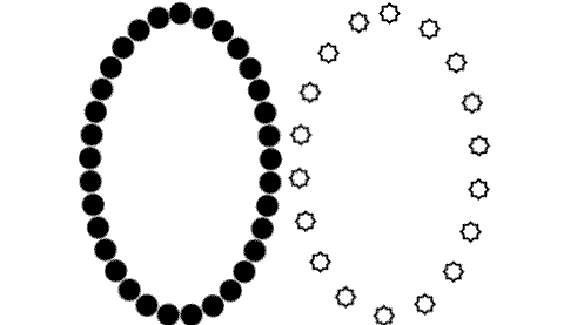
While Photoshop doesn’t offer a dashed line option, such as that found in Illustrator’s Stroke palette, you can easily simulate them by editing a brush in the Brushes palette.
The key to dashed lines is the Spacing option. Combined with Roundness in Photoshop 7, you can change a square brush into a dashed line quickly. Here’s what you need to see in the Photoshop 7 Brushes palette:
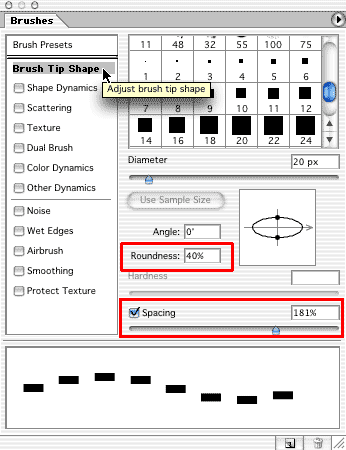
Remember that you need to open the Brushes palette from the Palette Well or the Window menu (or the F5 key). The small Brushes palette found at the left end of the Options Bar is for brush selection, not brush editing or creation. And what if the Brushes palette is grayed out and unavailable? Switch to a brush-using tool, such as the Brush tool (press B on the keyboard).
Reducing the Roundness makes a square brush flat. Increasing the Spacing moves each “instance” of the brush tip imprint farther apart. (Think of Photoshop’s brushes as applying the brush tip many times close together as you drag, rather than as a continuous stream of color, like an ink pen.) And, of course, the “dash” doesn’t need to be at 50% roundness.
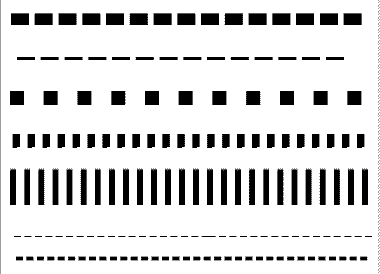
Don’t forget that you can make vertical dashed lines rather than horizontal by changing the Angle setting in the Brushes palette to 90 degrees.
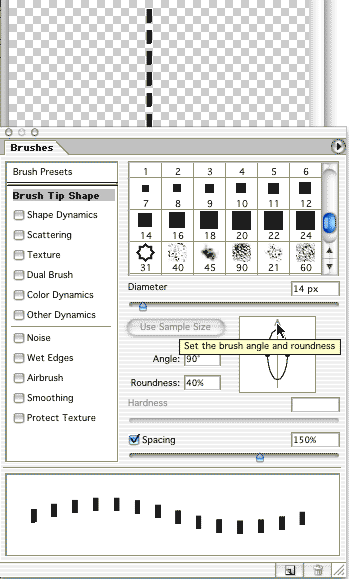
In Photoshop 6, you must first define a small rectangle as a brush and then adjust the spacing. (Photoshop 6 doesn’t allow you to change the Roundness value for non-round brushes.) Create a rectangle of the size of your dashes, fill with black, and use the menu command Edit> Define Brush. You can use the Rectangular Marquee tool to create the shape-make sure that Feathering is set to zero in the Options Bar.
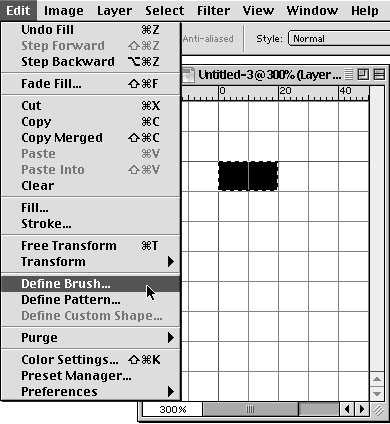
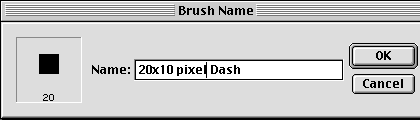
Give the new brush a distinctive name, one that reflects both its size and purpose.
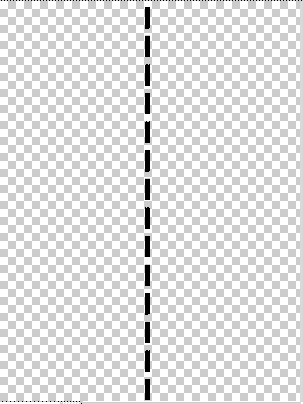
Once you’ve created your dashed line, you can use it with any brush-related tool. In addition to the Brush (Paintbrush in Photoshop 6), Pencil, History, Art History, and Eraser tools, you use brushes with the stamp, focus, and toning tools.
Remember, however, that these dashes will not follow the paths of the cursor, but instead stay oriented to the page. This figure shows the difference between a dashed line created in Photoshop (top) and one created in Adobe Illustrator (bottom). The Illustrator dashes follow the path no matter how it curves.

The orientation of the “dashes” to the path in Photoshop is insignificant when a symmetrical brush is used. A round brush, for example, never seems to be mis-oriented.

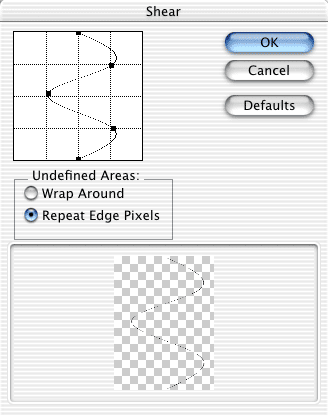
When you do need to curve a dashed line, remember the Shear filter (Filter> Distort> Shear). You can bend and twist a straight line. To save a step, draw the line vertically (the filter works only horizontally). It’s also usually a good idea to have the dashed line on a separate layer and have no active selection.
The Shear filter enables you to bend and twist. Click on the vertical line in the preview window to add an anchor point and drag. You can place several points as necessary. And if you’ll be working close to the edge of the window, click the button for Repeat Edge Pixels.
After applying the filter, the bent dashed line can be rotated and otherwise transformed.


Actually, you can make rectangular dashes that follow a path – turn on Shape dynamics in brush properties, and set Angle control to Direction.
hi
thanks alot dear for this tutorial
its very good, and i hope that you will be success…
good luck
Thanks, and thanks to Matija! Just what I needed…. (making trails on satellite images)…
So how do you get square brush tips?? All I see on the tip shapes are round and oddball shapes.
I’m trying to draw a 45 degree dashed line. Matija – all I see in Shape Dynamics concerning angles is angle jitter, whatever that is. Setting it doesn’t force a 45 degree line.
Are there any drawing tools out there that actually make sense? Adobe Photoshop drives me nuts. Anytime I want do anything I have to flatten the image first, then I can’t work with the shapes I’ve already added. Plus, to “set” anything I’ve done I have to click on the lasso tool and then double-click it. What a pain!
Great tut, thanks!
great info, still waiting adobe to make it more easier!!
Thanks for sharing
Great tutorial. Thanks also to Matija for the tip.
Thanks a million, it helleped a lot
if u want to create a simple dashed line just used the text tool and type a dash separated by spaces instead of letters then u can rotate or customize the dashed line like this.. no need to delete every single rectangle of solid line to become dash line..
– – – – – – – – – – – – – – – – – – – – – – – – –
see very easy just rotate the dashed line and you get what u want …
Thank you, its very much useful
Thank you for the tip!
Now using CS4, you can create dashed lines that follow a path! Here’s how:
Follow the instructions above, then select “Shape Dynamics” in the Brushes tool palette. Under the pull-down menu for Jangle Jitter, select Control: “Direction” and 0%.
Now when you create a path with any brush tool, your dashed line will follow it and rotate per the path angles.
Wao… Good idea… thankyou
Thanks Matija!!!
Thanks for the tip. This is a great resource!
It is very helpful, I am very thankful to planet photoshop team.
Majita, you’re the bomb… thank you!!!
thank you for this tutorial. Very useful for me.. 🙂
awsome!!! such a simple thing would be so complicated if it wasnt for this post. Thank you kindly
And can you add arrowheads at the end and the start of this type of “brush line” ?
you, jonjon oragon, are brilliant. thank you, sir.
everything I will learn on this web site 🙂
Great work thanks for sharing 😀
Thanks for the tutorial, this really helps. I’ve been using Illustrator to make dashed lines, it was so trouble some. Now I began to use photoshop to do this, and also thanks Matija’s advice for making dashed lines following the path. Thanks all.
Even easier. Use css to make your dashes. Replace square brackets with angle brackets. Press Print Screen. Then paste into photoshop. Use magic wand to remove the background.
[style type=”text/css”>
.coupon {
border: dashed 6px;
width: 280px;
height: 280px;
}
[/style>
[div class=”coupon”>[/div>
My brush options only has diamter as a selection option, it does not have spacing, etc as illustrated on your screen capture. I have Photoshop CS4
You can make the dashes follow the direction of your path in Photoshop as well. Look in the Brushes panel, under Shape Dynamics, where it says Angle Jitter. From the Control drop-down menu, select Direction
I needs some help.. I cant see where to find the angle Jitter, select control: direction..
Can anybody show me? Thanks !
Julie says: Follow the instructions above, then select “Shape Dynamics†in the Brushes tool palette. Under the pull-down menu for Jangle Jitter, select Control: “Direction†and 0%.
Now when you create a path with any brush tool, your dashed line will follow it and rotate per the path angles.
.. I´ve got photoshop CS4..
Here is a simpler (and really working) solution:
1) Draw a path with the pen tool
2) Select brush tool, set 3px size and 1px spaceing and an appropriate color
3) Select pen tool, right click on the path (what you created before), select “stroke path” sub menu and select brush. click ok
Now you have a continous line, following the path
4) Select eraser tool and set it to size 5px and spacing 200%
5) Select pen tool, right click on the path, select “stroke path” sub menu and now select eraser(!). click ok
tada.. you see a nice dashed line
these method is extremly useful, when you create dashed picture border
OMG thank you. I work in an architecture firm and this is so useful for property lines. That change of angle jitter to direction is key! brilliant. I have showed 3 people so far today as no one had been able to do it before. And it was so freakin easy!! That’s the kicker! God I loves the Interwebs!! (and Planet Photoshop!).
thanks! i needed something like this for a background design. =)
Very nice cyrus! I’ve been looking for a solution for this for a while. This is by far
the simplest solution (and most elegant) I’ve seen. Thank you.
I will surely use this going forward.
Thanks, easy and helpful tutorial!
A truly easy to follow and implement tutorial, look foreword for the next one coming.
Thank you!! This helps – so easy 😀
Thanks. Been looking for a simple, manageable way to make dashes in photoshop for ages… put together with direction setting it makes life so much easier!