
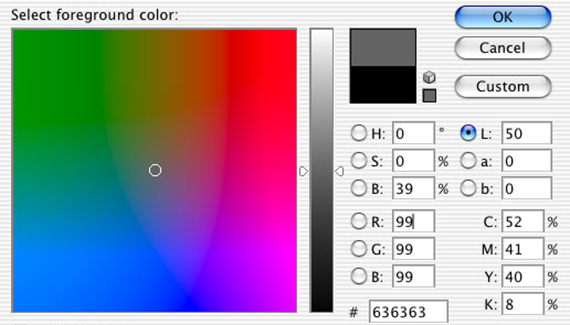
The vast majority of the time, the vast majority of us use Photoshop’s Color Picker in the default configuration. Perhaps we use Custom Colors to select a spot color, but when using the Color Picker itself, we ignore the eight optional modes. (What? You didn’t know that the Color Picker has different modes?)
By default, Photoshop’s Color Picker opens in Hue mode. The color field, the square area to the left, shows variations in saturation from left to right and variations in brightness from top to bottom. The hue is selected in the color slider, running vertically to the right of the color field. However, you can change the operation of the color field and the color slider by selecting a different mode button.
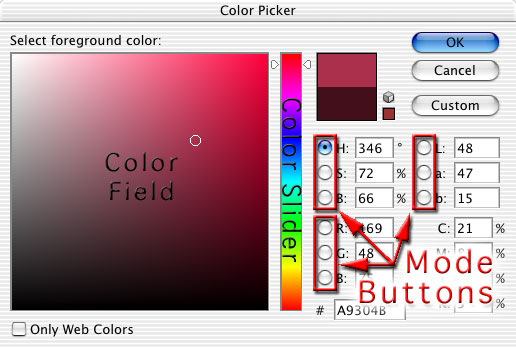
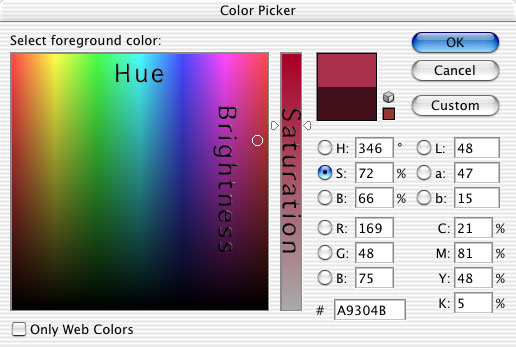
When the button to the left of S is selected, saturation is displayed in the color slider and the color field is used to determine hue (left-right) and brightness (top-bottom). Using the Saturation mode makes it easy to change the current foreground color’s saturation with the color slider.
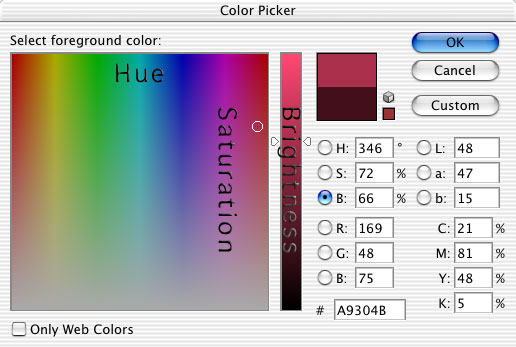
Click on the button to the left of B to switch to Brightness mode. The color slider is used to select brightness, while the color field determines hue (left-right) and saturation (top-bottom). Brightness mode is an excellent choice when creating a gradient from two tints of the same color.
You can also use red, green, or blue as the basis for selection in the Color Picker. In these modes, the selected color appears in the color slider, while the other two component colors are determined in the color field.
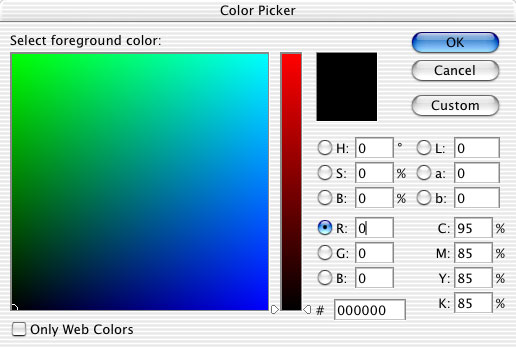
Using the Red mode as an example, you can best see the relationship between the color slider and the color field when the selected color is set to zero (the bottom of the color slider). Black is located in the lower-left of the color field, where all three component colors are zero. White is in the upper-right of the color field (when the color slider is also dragged to the top).
When the color slider is positioned higher, the component color value is higher than zero. The relationship among the colors in the color field is less clear.
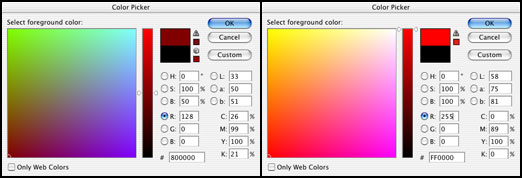
You can use the R, G, and B modes of the Color Picker to maintain one or more component color values when defining a new foreground color. To retain one color value, use that mode, ignore the color slider, and make changes in the color field. To maintain two color values, use the mode of the component color that needs to be changed and adjust the color slider only.
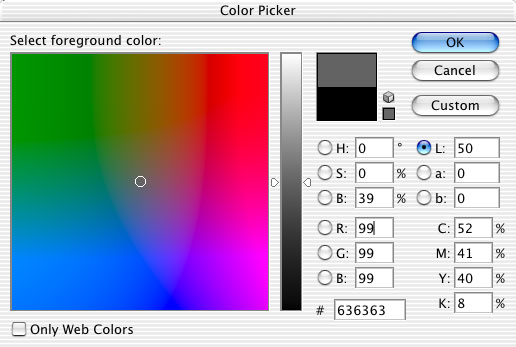
In the upper-right of the Color Picker are buttons that enable you to use the Lab values as modes. In L (luminance) mode, the color slider determines the luminance value and the hue is selected in the color field. L mode is best used to change the luminance of an existing foreground color.
The Color Picker’s a and b modes use the color slider to adjust that component, determining the other color value and the luminance in the color field. [The Lab color model defines color according to luminance (L), a red-green component (a), and a blue-yellow component (b).] You may find no use for the a and b modes of the Color Picker.
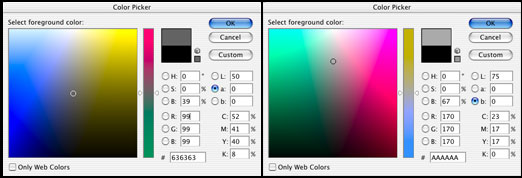
Note that you there are no buttons to the left of the CMYK fields.


I don’t seem to have the color picker option on my photoshop, it just uses the circle colour picker and doesn’t have the fields on the right. How do I get this color picker!?
James, you need to change the color picker to Adobe. It’s under preferences.
I am just looking for how to change existing colors on a page to different colors in very few moves… I am designing t-shirts and want to take a shirt with a certain design and change the main colors without having to do much work….
Wow….now this is interesting. Something I NEVER knew about. Never seen in any other tutorials and wasn’t taught about this in class.
(how to use the color picker in this powerful manner that is, not what the different modes are). I usually entered the color in the hex or r,g,b or tried to pick it out from the color field. Never knew by choosing a different circle, I’d be manipulating the Color Picker in a different, and more useful way.
Christopher,
just hit Ctrl+U and it will open you hues panel from there change the colors. Just make sure to have the thing you want to change selected.
Wow, this is a great tutorial! I had no idea this existed and was stuck on the “red” selection somehow. It was very frustrating to manipulate colors this way when it was unintended, but this new discovery will be very helpful to me now. Thanks so much!
Dude that’s very helpful
Please help me! I cant pick color in my color field or in saturation field (arrows) and i really really need to fix this because i am an illustrator and i need to do a lot of work!
Thank you .
Maria de Palma
This is so interesting and I wish they had taught this in class or shown it in a tutuorial. I had acciedently, randomly changed my color picker to a different mode and had a mini-freak out…. ah I love help forums.
ah ha – thank you Tom. Somehow I had changed mine from various online classes and could not figure out how to get it back!
How do you pick a 60% black? I used ‘S’ to bring up hues of black, but what is 60%? Or any percent for that matter.
Thank you for this tutorial. I had somehow changed the way the colors displayed and have been trying for a week to find a way to change it back. Your tutorial has put an end to hours of frustration.
I have been looking for these options for a long time and owe many thanks to a coworker who found this answer. I feel like Hellen Keller at the pump–oh! that’s how it works!
Thanks
Thanks.. i somehow screwd up my color picker.. your article helped me fix this issue.. thanks a lot 🙂
Wow, this is excellent! I was trying to design a website today and my color picker changed by itself. Apparently, Photoshop lost my settings and reverted back to default (for some lunatic reason). Anyway, thanks for showing me what to do!
-Ryan
I knew that there is an option to choose modes.. But recently my color picker changed.. I dont know what settings I changed.. It was worst! I got a color picker with some default colors showing in the left (Windows Color Picker)…
I just got the wrong settings I chose with the help of Tom! Thank you buddy… I chose “Windows” under color picker option in my preferences!!…… Thank you all!
Simple and surprising at the same time 🙂 Thanks!
Gracias un excelente aporte me ayudo muchisimo
Awesome!! Thanks!!
I have been trying to figure out why my color picker changes for MONTHS. This has been a huge relief to get it back to Hue mode. Thank you!!!!!!!!!
Bless you Planet Photoshop!! This was a great page explaining something so simple yet so mysterious when you don’t know how it works! Sweet!!!!! I, like Paul, really missed my Hue mode!
it’s a very useful tutorial:) for a long time I’m trying to set my color picker to default mode and now I found how 🙂
Thank you! I learned helpful terms and figured out how I’d accidentally got out of hue mode – which I wanted to be in. 🙂
Thanks so much! Great tutorial! Somehow I changed my color picker mode to Hue by accident. I did not know that the color picker had different modes. I have been googling off and on for a couple of months trying to figure out how to get back to the default color picker settings! Now, I learned that there is more to the color picker than the default mode. Thanks again!
Oh my lord! I managed to get stuck in a mode I did NOT want and could not figure out how to escape. Thank you SO very much!!!! Woohoo!!! You fixed me!!! PLUS! There are those other features that I sneak around to find in other Adobe apps that I did not know were options in the Adobe Color Picker. AWESOME lesson!
THANK YOU! My color picker was in the “R” mode and I had no idea what happened. Sooooo frustrating and such a simple fix. Thanks for the info! No longer frustrated!!!!
thanks, I didnt know about the different modes and was unble to continue working till I get my “hue” back. Somehow I clicked L (luminance) and couldnt find a single color I needed!
I should add, that I am VERY excited about the other color modes, now that I know they are there and can get back to my beloved “hue”.
Hi Corey,
Great tutorials, i am an avid follower!!!….and you are the best on the planet!!!
enough of that, quick one, i noticed you didnt give any tutorials on how to colour comic
strips…hmmm…i know you’re focusing on the big pictuire but comic artists like me and
who atimes work with blends ( real life pictures ) run into issues…nuff said.
regards…
Ade
Thanks for this tutorial.,… It Works 🙂
Very interesting. Wish I saw this article long time ago. Would have saved me so much time. Great job
Thanks for the tutorial! Unfortunately my colorpicker on Photoshop CR4 looks completely different and I can’t find how to change it. Please help.