Borders Under a Minute
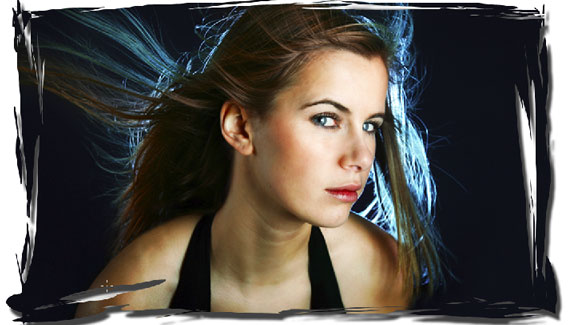
Create really cool borders in under a minute to use on virtually any one of your photos or even video for that matter.

Create really cool borders in under a minute to use on virtually any one of your photos or even video for that matter.


excellent tutorial again, corey – super fast and interesting framing. i like it. greetings from austria, kurt.
This is an excellent beginners explanation. Concise and to the point.
Thank you very much!
Rosanna
Nice and simple – looks classy.
Thanks!
Excellent video. I understood it which says something. Excellent. I have now added this to my favorites and am using it all the time.
Thanks a lot
David
🙂
Hi,
Just wanted to tell you that the tutorial is very easy to apply and very useful.
thanks for sharing it with all of us.
Alvaro
wow! this tutorial is great! It makes me feel like a pro hehe 🙂 thank you so much… keep the tutorials coming!
As always, great, quick tips.
great tips! thank you!
In the tutorial “Borders in a Minute”, can you give a tutorial on how to make the digital swoops graphic in the opening display / lesson.
Thanks
Good……toturials…I like it
Its realy good explanation I hope you be success in your life and job
kind regards
Great video… I was impressed how you made it easy to understand.
Great Job!
Paulo Jordao
i got confused when you put the color into the border x-x
great tutorial. this was so easy to use. Thanks
I love this tutorial. Is it printed out somewhere so I can save a copy to follow later.
Thanks
This was a great tutorial! I’ve been going through a creativity dry spell but this has given me a few ideas. And it’s so simple!!!!! XD
I have been watching your videos for a while. THis video is the one that I found it very fun to work around my pictures. THanks so much.
This is a handy hint. I had a folder of images I wanted to have edge effects on but was lost to how to create one and I was thinking of googleing it, then instinct told me to go to NAPP site where I then got a link to this tutorial.
Very brief, yet detailed.
Thank you
Solay
Hi Corey, thanks for the tut, we are trying this for this week’s Be Creative #26 Challenge over at the Elements Village forum http://www.elementsvillage.com/forums/showthread.php?t=37148,
Lisa
creative and easy
Well, if you think it properly, you might find some use for this tutorial… Nice one, perhaps not on scribbling, but, some other ways… It is nice! Thanks
Márcio Guerra
This was so simple to do, I actually tried this today and my graphic came out better than what I had hoped for. I don’t know what I would have done without these tutorials
Thank you so much. I just did it and having fun creating border from your simple tutorial. i didnt know it is that simple :-)) i shared your website to my friends in my blog, i hope that is ok.
Very clear tutor!I didn’t even have to attach speakers in my pc to see what was coming….
Thakns, You are Awesome!! Best Regards from POLAND!
Same as poster above, I get confused when you fill your doodle with color early on in the tutorial – I’ve noticed that some of these tutorials aren’t really PS newbie friendly – which kinda defeats the purpose. I am on a mac trying to “option+delete” the hell out of it, but no color is pasted down…. You might want to explain and/or cover alternative ways of doing it…
Other than that, the tutorial and the effect it creates looks great!
Corey you freakin rock dude!!!!
Help
Wonderful stuff!!!!!!!!!!!! I am completely new to photoshop, so i was lost when you added foreground colour. I have no idea what happened right there. could someone please help me. Send me an email at ramone_williams@hotmail.com
COOL TUTORIAL THANKS FOR SHARED IT 🙂
Excellent Corey. Another great tutorial for me to teach my students
jussst amaziiiiiing….
Its amazing!!!! Thank you so much!!!
Thank you SOOOO much Mr. Barker, i’ve been trying to learn this ALL year!!
Hi all, I have only recently found this great site, good tutorials!
As for the problem people have with adding foreground colour, if you look at the bottom left of the tools palette you will see two small squares wich by default are black on top and white below, these are the same squares that will CHANGE COLOUR when you choose a different colour from the colour palette (ie when using a brush). The top square (default black) is the foreground colour (brush colour) the lower square is the background colour (canvas colour if you will) default white. If you press the D key on your keyboard (Mac or PC) you will be given the default colours (even if you had other colours previously selected). if you press the X key (Mac or PC) it will toggle these colours from foreground to background, (you can also do this in the tools pallette by using the small arrows icon on the top right of these squares). When using Option+Delete (Mac) or Alt+Backspace (PC) you are filling your selection with the FOREGROUND COLOUR ( ie if default colours are used it will be filled with black). As Photoshop uses a Black to White (Grayscale) Image to create a mask, anything White will be 100% solid, and anything Black will be 100% Transparent, and so show your image underneath. Anything shaded gray will have varying levels of transparency. Hope this helps!
(Note: using Command+Delete Mac) or Ctrl+Backspace (PC) will fill your selection with the BACKGROUND colour you have) ie if default colours will be White.
Love the site Corey, Keep up the great work!
Wow – awesome! I can do this with just Photoshop Elements! Thank you for this!
OMG. You are such a pro. And very pro tutorial. Thanks! I will play with my photoshop. ^__^ I wish I can do that. Tsk.
Corey this is nice again, I like it very much, thank you for sharing I am inspired.
This is an excellent beginners explanation
Awesome short, effective, tutorial. Thanks!!!
Corey this is nice again, I like it very much, thank you.
Thanks You so much Corey..You really are a good teacher.
This is awesome. Thank you
New to Photoshop – Self taught using web and books. This post is awesome. Clear, easy to follow directions. I can’t wait to show my customer their unique final image made using your techniques!!!
Hi, great tutorial and it is easy to understand, and very effective for my job , thanks
Great tutorial, but when I create the clipping mask nothing happens. My Above layer stays the same, my below (mask) layer stays hidden. PS CS4
Great tutorial , thanx!!