Great tutorial, but when I play through the finished product, it goes slow the first time like you said it would but after it goes through multiple times it still moves at a very slow FPS rate… Is there a way to fix this?
Hi, I was wondering if you could do animations in photoshop cs2, if so, where is it? i would appreciate it if you would email me, and INCREDIBLE TUTORIAL by the way
Nice work, man!
For those with problems, only works on Photoshop CS3, but Extended… Yep… It sucks… For the one who asked about the keyframe rate, or something like it, in the fly out menu you have some options for the video! Good luck.
I too need to know how to save this file to maintain the color changing goodness…I tried .gif but it says i must flatten the image and discard the animation…which of course is not what I want.
any help would be greatly appreciated!
Im going to close this document and lose what i did, but since the tutorial was so well explained i can do it again any time!
I went into the Save(optimize) for Web dialogue box [Shft+Ctrl+Alt+S]
and changed around a few setting, I selected Interlaced as you said, and I also had to change the Color Reduction Algorithm to “Windows” to get rid of the icky appearance of the GIF under its default algorithm.
and sufficed to say, it worked! I ended up with this!
this is great! im doing a movie poster for graphic design, im in 11th grade.. and it’s really well explained im going to try using it tomorrow. hopefully saving isn’t a problem!! good work corey
Hi Great master..
thanks for all stuff..
🙂
I did it with original red, when I put the color on layer by Layer style, only works with blend mode color….
blend mode overlay only works with lite background color (as the gray one wich scott took for you)…
thanks again…
Yeah for CS4 (normal) the overlay does not work, but if you change it to color or hue the color pops right out…. so maybe it is b/c im not using an “Extended” edition.



Thanks Cory,
Cool tutorial. Can see myself using that one soon.
Cheers,
Mark
This is cool. But I could not do the animation part. I am using Adobe Photoshop 7. Any body knows? Thanks.
great tutorial!
you are awesome with animations 😀
Elizabeth: I think it only works with CS3 Extended :/
worthwile, very worthwile – gonna see if I can reproduce it myself that easily…
Great tutorial, but when I play through the finished product, it goes slow the first time like you said it would but after it goes through multiple times it still moves at a very slow FPS rate… Is there a way to fix this?
it is very nice tutorial. i have learned a lot. i have tried it and i was be able to do. Also i enjoyed a lot. thanks for this wanderful tutorial.
Hey Cory Your tutorial is grt, but how do i save this?!?!!?
Hi, I was wondering if you could do animations in photoshop cs2, if so, where is it? i would appreciate it if you would email me, and INCREDIBLE TUTORIAL by the way
My gosh this is incredible, what can’t photoshop do?
You’re amazing 🙂
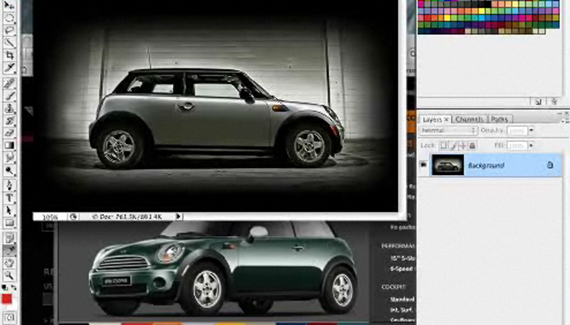
And your car’s so cute, lol, i love minis.
x
you are one amazing artist.
Hey Corey, i couldn’t do it =( i can’t get overlay to change, but i keep trying!
(CS2 9.0)
This site very useful for me to learn some new things in photoshop .My best wishes to this site designers and host.
I liked how u filled the car to badge colour so quickly, thats a trick i’ll be using =]
Nice work, man!
For those with problems, only works on Photoshop CS3, but Extended… Yep… It sucks… For the one who asked about the keyframe rate, or something like it, in the fly out menu you have some options for the video! Good luck.
And thanks for these great tutorials…
Márcio Guerra
Jestes moim bogiem 🙂 You’re my GOD 😛
this is amazing!!
but uhmm what format do i save it in? =|
SWEEEET!
I too need to know how to save this file to maintain the color changing goodness…I tried .gif but it says i must flatten the image and discard the animation…which of course is not what I want.
any help would be greatly appreciated!
Im going to close this document and lose what i did, but since the tutorial was so well explained i can do it again any time!
with regards
josh
This one is great…I am a disciple….:)
@ David. Look in, window>then open animation platte.
For formatting, save as a GIF. and then save as Interlaced.. i had trouble formatting too but i figured out that
yes yes!! thanks so much Ryan!
I went into the Save(optimize) for Web dialogue box [Shft+Ctrl+Alt+S]
and changed around a few setting, I selected Interlaced as you said, and I also had to change the Color Reduction Algorithm to “Windows” to get rid of the icky appearance of the GIF under its default algorithm.
and sufficed to say, it worked! I ended up with this!
Man that tut rocks, great job!!
this is great! im doing a movie poster for graphic design, im in 11th grade.. and it’s really well explained im going to try using it tomorrow. hopefully saving isn’t a problem!! good work corey
I like this tutorial, my wife and I have a BRG Cooper S, I love driving that thing, it’s like driving a go-cart!
Hi Great master..
thanks for all stuff..
🙂
I did it with original red, when I put the color on layer by Layer style, only works with blend mode color….
blend mode overlay only works with lite background color (as the gray one wich scott took for you)…
thanks again…
Cheers…
Yeah for CS4 (normal) the overlay does not work, but if you change it to color or hue the color pops right out…. so maybe it is b/c im not using an “Extended” edition.