I watched your video on creating slideshows using photoshop cs3 but i just can’t seem to make sense of your comment about “holding down the shift key”. Here’s the deal….I have several imagemy files open just like you demonstrated. So my question is how do i get all of the images into the layer section so they all show the way you have them? I’m confused!
Thank you so much for this! You dont know how many times i have searched youtube, google, forums on how to do what you did in ONE video! You are so awesome! Thank you!
For anyone who i still having problems saving it you need to save it as a gif, go to “File” then “Save for Web and Devices” I made one using cs4 but its the same! THANK YOU AGAIN!
Do the photos need to be all the same size? I am trying to use some vertical and some horizontal photos and when they transition to the next you can see the one before it in the background.
Great, I just spent an hour creating my animation but you didnt say what format to save it in. I tried GIF but that didnt work. grrr.”
David (even though you said this over a year ago),
You would save the file using File|Save for Web & Devices. Then a dialog box will pop up and you choose the settings you want and click save. Save it using .gif
Thats what I do and it works everytime. Hope that helps anyone with the same problem in the future.
I noticed some were asking how to save this. Instead of saving it, why not try exporting it. This will give you different options that may assist with your problem.
Thank you very much for this tutorial. For everyone who had problems saving it, use:
Save for web and devices
then press Save at right top courner..
this time it should work!
Easy to follow procedures, works great! The file size came out to be quite big, so I reduced the fps from 30 (1.3Mb) to 5 (300Kb). Also I find that with the black frame at the beginning, the transition as it loops around does not look nice. Hiding it seems to work much better, Just my opinion. Thanks again!
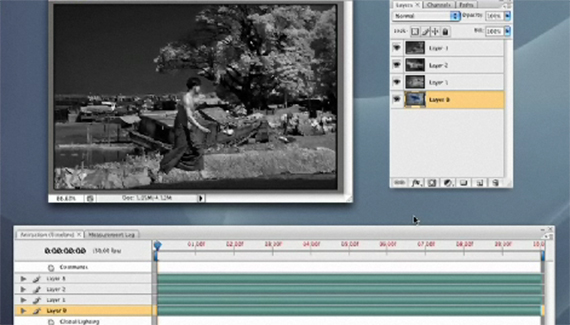



Thanks Corey
Great, I just spent an hour creating my animation but you didnt say what format to save it in. I tried GIF but that didnt work. grrr.
Brilliant work Corey works like a dream!
Yeah! I had the same trouble. Spent an hour creating the animation but don’t know how to put it into Dreamweaver.
Cheers, helped a lot.
Great, worked first time but still no idea how to transfer it to Dreamweaver – any ideas anyone?
what kind of file will i save it??
Thank you for your video tutorial Corey
hi corey,
I watched your video on creating slideshows using photoshop cs3 but i just can’t seem to make sense of your comment about “holding down the shift key”. Here’s the deal….I have several imagemy files open just like you demonstrated. So my question is how do i get all of the images into the layer section so they all show the way you have them? I’m confused!
Heeellllpppp!!!!
Rosario
Thank you so much for this! You dont know how many times i have searched youtube, google, forums on how to do what you did in ONE video! You are so awesome! Thank you!
For anyone who i still having problems saving it you need to save it as a gif, go to “File” then “Save for Web and Devices” I made one using cs4 but its the same! THANK YOU AGAIN!
Oh i have another problem, when i made my version to this the quality of the picture is not very good. Any help?
http://i428.photobucket.com/albums/qq7/Darth0001/mysiganimated2.gif
Thanks alot!
Thanks a bunch Cory. I blew my brains out with another video trying to do exactly this. Your video is clear and simple and just what I needed today.
Thanks again,
I can’t figure out how to do this in CS4. The animation toolbar gives me the pictures in frames instead of the bar thingy
Krista, I had the same problem. Did you happen to figure it out?
Do the photos need to be all the same size? I am trying to use some vertical and some horizontal photos and when they transition to the next you can see the one before it in the background.
“David said on — May 7, 2008 @ 6:00 pm
Great, I just spent an hour creating my animation but you didnt say what format to save it in. I tried GIF but that didnt work. grrr.”
David (even though you said this over a year ago),
You would save the file using File|Save for Web & Devices. Then a dialog box will pop up and you choose the settings you want and click save. Save it using .gif
Thats what I do and it works everytime. Hope that helps anyone with the same problem in the future.
I noticed some were asking how to save this. Instead of saving it, why not try exporting it. This will give you different options that may assist with your problem.
For those asking how to save this, go to:
-the File menu
-select “Save for Web & Devices”
All of your save options will be listed in the window.
Thank you very much for this tutorial. For everyone who had problems saving it, use:
Save for web and devices
then press Save at right top courner..
this time it should work!
Easy to follow procedures, works great! The file size came out to be quite big, so I reduced the fps from 30 (1.3Mb) to 5 (300Kb). Also I find that with the black frame at the beginning, the transition as it loops around does not look nice. Hiding it seems to work much better, Just my opinion. Thanks again!