Sponsored by the National Association of Photoshop Professionals. Learn More

Add A Stroke Layer Style


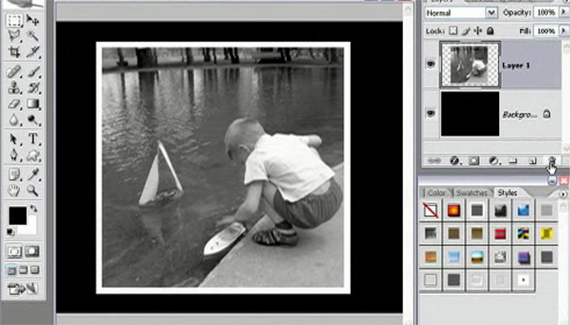
Create a stroke layer style in Photoshop CS2 to quickly add a custom border to your photos.

Dave Cross is Senior Developer, Education and Curriculum for the National Association of Photoshop Professionals and is involved in all aspects of the training that is provided to NAPP members. Dave’s book “The Photoshop CS2 Help Desk” is now available on ScottKelbyBooks.com

4 Comments

  1. Photoshop Video Tutorials | Photoshop | Best collection of free video tutorials on software and internet applications Pingback on — April 24, 2008 @ 1:35 pm

    [...] (planetphotoshop.com)Give Your Photo an Antique Look :   (planetphotoshop.com)Add A Stroke Layer Style : quickly add a custom border to your photos  (planetphotoshop.com)Make Your Night Photos Pop : improve photos that are taken at [...]

  2. Stein Rimbaut said on — April 25, 2009 @ 6:33 am

    Hello. Thanks for this tip.
    But i have a question.
    When i normally Add a border, i add a few strokes.
    First a White stroke of 100px then a Black stroke of 3px and then another Black 3px stroke on the edge where the white stroke ends.
    example: http://snapshot-sr.deviantart.com/art/Under-My-Umberella-120312241
    Is there a way to put that into Styles so I only have to click once in stead of following every step?

    Thanks
    Stein Rimbaut
    Snapshot

  3. DH said on — July 15, 2009 @ 1:37 pm

    This is exactly what I was looking for! Thank you for taking the time to make it available!

  4. Alison said on — June 11, 2010 @ 9:46 am

    Ah, thank you!!! I could figure out how to apply the same style more than once!!! Thanks so much for this tutorial!

RSS feed for comments on this post. TrackBack URI

Leave a comment

Create A Composite Layer

If you have a multilayer composition and you
want to apply an effect to all the layers at once, don’t flatten the layers–use a composite layer instead. Hide the layers you want excluded, and press Shift-Command-Option-E (PC: Shift-Ctrl-Alt-E). A new layer will be created at the top containing a merged copy of all the visible layers.

Another option is to create a new layer at the top of the stack and make it active. Command-click (PC: Ctrl-click) each layer you want to include to make those layers active, as well. Press Option-Command-E (PC: Alt-Ctrl-E).
by Colin Smith

Read More Tips

Tip of the Day
 
 
Kelby Training

