Narendra.s.v 19 June, 2009 at 13:33 Reply That’s pretty cool so far 🙂 cant wait to see the 2nd part. But i guess the image looks pretty cool before the displacement. Of course i haven’t seen the trailer 😉
Jesse 19 June, 2009 at 14:53 Reply Hey Corey, one of these days you should show how to draw a transformer! That would be long, but extremely cool!
Snowman 19 June, 2009 at 18:25 Reply Hey wow, this is awesome, just like your other tutorials! I can’t wait for part 2! Corey, you rule!
Connor 21 June, 2009 at 07:32 Reply If you clip the metal layer into the shape layer then merge them it saves you having to delete/hide the original two layers.
Chirag 24 June, 2009 at 16:32 Reply That movie was amazing (despite its terrible ratings). I can’t wait until the next part.
Tavis Glover 25 June, 2009 at 01:13 Reply Cool! I have never really used displacement maps, but this is a great way to get a unique textures. Thanks! Gotta watch part 2 now!
Chris 8 July, 2009 at 01:48 Reply Hey. I am having a problem because I can’t Ctrl+click on the logo so I can’t get the metal layer to show.. HELP PLEASE! Thanks.
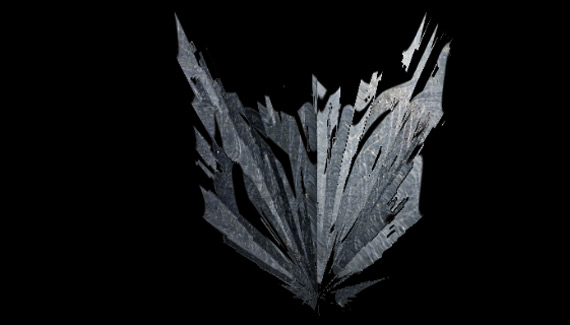
ry 26 July, 2009 at 00:47 Reply hey nice tutorial corey is that possible to make an animation as the deceptions logo is getting broken into pieces
Predator 8 September, 2009 at 12:08 Reply Thank you Corey , your tutorias helped me very much learing photoshop .



great tutorial corey cant wait for part 2 woohoo
That’s pretty cool so far 🙂 cant wait to see the 2nd part.
But i guess the image looks pretty cool before the displacement. Of course i haven’t seen the trailer 😉
Got to admit thats pretty cool. Your amazing. Great tutorials.
Hey Corey, one of these days you should show how to draw a transformer! That would be long, but extremely cool!
Awesome tutorial, can’t wait fort two! 🙂
Hey wow, this is awesome, just like your other tutorials!
I can’t wait for part 2!
Corey, you rule!
very nice corey
If you clip the metal layer into the shape layer then merge them it saves you having to delete/hide the original two layers.
@ Connor yes and no cos it wont retain the shape
Connor
That movie was amazing (despite its terrible ratings). I can’t wait until the next part.
Cool! I have never really used displacement maps, but this is a great way to get a unique textures. Thanks! Gotta watch part 2 now!
Hey.
I am having a problem because I can’t Ctrl+click on the logo so I can’t get the metal layer to show..
HELP PLEASE!
Thanks.
hey nice tutorial corey
is that possible to make an animation as the deceptions logo is getting broken into pieces
This`s the best tut ever thankz a lot…
Thank you Corey , your tutorias helped me very much learing photoshop .