I hope you know that you have single handedly taught me a LOT about photo shop!
I will be away from my personal PC and photo shop for almost 6 months. I am counting on there being a half million tutorials to watch when I get back!!
This is a frustrating exercise because the narrator talks so fast that towards the end, when we invert, he says click “command control I” and I think he meant command or control I – he says it so fast I cannot make out what he is saying.
Also, when you click on the top layer to create the layer mask and he says click control on the layer, I did not get an inverted layer mask unless I dragged and dropped the layer over the layer mask icon and the instructions did not say that so I think for those like me who are new it would be helpful if the instructions were not so rushed and if they were a little more accurate. Also, it is not intuitive for me when I needs to switch between layers and sometime that goes so fast I have to replay the tutorial to figure that out – I have never seen a photoshop tutorial go so quickly – I wish the instructions were printed out – I know, maybe I am too slow but I still love the lessons – thanks
Tom Corey does speak fast but for me & other experience users, think its great.
There are many instructors, writers & designers all at different levels.
From your post it sounds like you’re a beginner, which is fine, we all were.
You need to find instructor who teaches beginners, one that moves along at a pace you’re comfortable. Ben Wilmore is excellent & I think you’ll enjoy his style.
IMO I think it’s rude to post a comment complaining about a speaker bc you can’t keep up.
Have you ever given any thought how experienced uses feel sitting in a class that moves very slow.
Go to PsWorld almost every class is for beginners most of the speakers take 1:15 to teach 15 minutes worth of tips & techniques.
It would be nice if there were more speakers like Corey teaching at a pace for experienced users.
You will understand & agree with me when you get more experience, you may understand now since this was an old post.
Corey don’t change your style, I’m sure this guy isn’t the 1st to make this comment bc you & I already spoke on this topic at a previous PsWorld. I was in your class & someone else said something similar.
When I was at the first PsWorld I learned from Ben. Ben is still awesome but I prefer guys like Corey at the point in my career.
Tom try Ben, Eddie Tapp or Matt K.
Any other beginners reading this I’m not trashing or picking on you just trying to explain instruction (learning) doesn’t revolve around beginners!
ok about the command control thing. He is saying command on a mac, and control on a windows based pc. As for the layer mask, you hold control when you click on the image in the layers menu, this will select that layer only. Then you just click on the layer mask icon. Thats all it will create a layer mask with the “inverted” picture.
Okay, so I get everything else but the part where he says “option delete” to get the back fill on the photo, I don’t get it. I hit the delete button but a pop up screen says “could not clear because scratch disks are full”. Help please!
hey there , i like all of yours tutorials.they’re very useful . i’m also looking for a vexel tutorial,but an easy one,because all i’ve found are too dificult to me.any help and i would be happy to say thankx.
i’ve been watching coreys tutorials for a year now and so far has done so many fun crazy things just applying his techniques to different styles. yes if there is an art war id like corey to be on my team. he likes to use hard light which by far is the best thing to do using layers and blending.keep it up dude
Very good techniques to create a nice effect.
Rubikmaster: I believe Corey used the surface Blur so as to keep the edges of the image in tact while smoothing out the surface.
Corey in the last layer before you finished on the layer mask you said to invert the selection but the invert can’t be selected can you help please and tell me why thanks in advance
Regards
MaRvIk
I really don’t think this tutorial is much better than using the posterize effect in one step. Yes’ it’s different, but not enough to go through 4 more filters and 5 layers. Having said this, I love this site and have learned basically everything I know about PS from this site.
i don’t see either a surface blur. it must be the much updated version. oh well, it was still helpful and I got the effect I wanted from your easy step tutorial. thanks so much. it was a fun tutorial. 🙂
tis was excellent!
i love it!
ur site is very comprehensive.
i was just wondering if there is any tutes on how to get rid of backgrd from photos.
thanks!
I’ve searched the whole web for tutorials on comic book look and this one is really the best. Great stuff. I will be (over)using this technique in weeks to come.
Oh god. I’ve gotta go start at photoshop, 101. This was very cool… but I was a deer-in-the-headlights because I’ve never dealt with layers. Thanks for a great trick. I’ll get to it in eventually. 🙂 Thanks for the inspiration.
Takes a while to get used to Coreys fast narrative. Had to do a lot of pausing and switching screens. Also need to understand the different key functions between mac and PC, but once tried, this was a superb tutorial. Had a blast converting my girlfriend into a comic book heroine.. and she loved it. Now framed and on the wall!
Awesome Tut, but would love to have a written version as well (agree with Tom). New to this so have to go back and play over a few times, especially when I can’t hear a command.
All in all, awesome and will do loads more.
Q – Can u save these commands and apply to other photo’s?
I have been doing tutorials every day. I am a senior in high school taking a multimedia class. I study on my own and have been enjoying planet photoshop for almost three weeks by now. It is the best tutorial site out there. I have been looking for a comic book effect for half a year now and finally i found this one and it is really good. Corey is amazing!! I dont usually like photoshop, i am more a premier pro person, making videos. but since i moved from japan and this school does not have a Video production class. I took multimedia, and your site has helped me alot. so thank you for everything that yall do. Keep up the Good Work!!!
Very nice face effects, m want to learn more effects through this. Easy to learn your steps and give effects and also easy to learn. Like to see more…..
Have a great time Buddy!
Well Surly this SITE AND THIS person is the best of the best i mean wow what wonder he tells here keep up the good work man and yes if u have a anime effect you know to make a picture Look like Anime Cartoons Plzz tell
Thank you for the great tutorial. I am actually using it in my Graphics arts class on a project and it has so far yeilded great and unique results. Keep up the great work and keep cranking out more tutorials.
I love it! Omg thank you soo much! I have been looking for someone to explain this in a way that Everyone can understand! You have out done all of them!!!! AGAIN THANKS!!!
I really like the quality and detail of your tutorials, and was wondering if you’d know a way to make a fully colored concept to a image, or a game texture. doubt tho 🙂
DUDE!! That is super incredible, you took the time to figure that out. I have been trying to get a decent cartoon effect and now I have the best one next to that movie Scanner Darkly. I tried this and dude I will buy you a bucket of chicken.. I asked you to do this on Layers TV and I never knew you had this site and I found it by trial and error. Man, I am like so thankful for this tutorial and I found it on my birthday and thank Cory. I can do really cool stuff with my kids finally. YEAH, YES, Love it man, love it.
This tutorial makes me thing in a variaty of possibilities using this techniques to actually makes logos out of a photo, by playing with the different color channels just as the video shows and then importing the image into fireworks and apply the tracing image effect in which it converts the bitmap image into vector lines with filled colors.
I am pretty new at tricky things in PS and this was a super easy tutorial. I didn’t get lost and it turned out great. Thanks! The only thing that would be better is an action to download to do it automatically!
Awesome, awesome, awesome… Corey is the man. I don’t mind the speed either, the video has a pause button for a reason. I would be far more annoyed with having to try and skip ahead while a tutorial waited around.
I’ve seen some hackish photoshop tutorials on the web, Corey’s stuff is very clean, concise and useful. Heartfelt thanks to you.
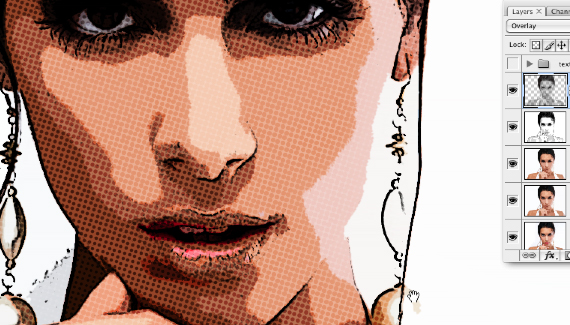



Awesome tutorial. Best cartoon effect I ever seen. By the way, the gaussian blur can replicate the surface blur.
P.S. Set the gaussian blur to a radius of 3.5
Been looking for something like this for a long time! Thanks!
thanks for the comic book effect, fun tutorial!
Thanks
Danke
Good stuff, but it is a pity about the poor quality of the video
Been looking for something like this for a long time! Thanks!
If there is ever a design war, I want Corey on my side! He never runs out of blammo!
Excellent. Well done! Really like the effect. Keep them coming, I am learning so much by this 🙂
Thanks a billion 😀
David
🙂
best of the best.
pretty good
I hope you know that you have single handedly taught me a LOT about photo shop!
I will be away from my personal PC and photo shop for almost 6 months. I am counting on there being a half million tutorials to watch when I get back!!
Thanks again!!
Ah man this is super slick, thanks so much for the tutorial. I’ll be putting this to good use.
This is a frustrating exercise because the narrator talks so fast that towards the end, when we invert, he says click “command control I” and I think he meant command or control I – he says it so fast I cannot make out what he is saying.
Also, when you click on the top layer to create the layer mask and he says click control on the layer, I did not get an inverted layer mask unless I dragged and dropped the layer over the layer mask icon and the instructions did not say that so I think for those like me who are new it would be helpful if the instructions were not so rushed and if they were a little more accurate. Also, it is not intuitive for me when I needs to switch between layers and sometime that goes so fast I have to replay the tutorial to figure that out – I have never seen a photoshop tutorial go so quickly – I wish the instructions were printed out – I know, maybe I am too slow but I still love the lessons – thanks
Tom Corey does speak fast but for me & other experience users, think its great.
There are many instructors, writers & designers all at different levels.
From your post it sounds like you’re a beginner, which is fine, we all were.
You need to find instructor who teaches beginners, one that moves along at a pace you’re comfortable. Ben Wilmore is excellent & I think you’ll enjoy his style.
IMO I think it’s rude to post a comment complaining about a speaker bc you can’t keep up.
Have you ever given any thought how experienced uses feel sitting in a class that moves very slow.
Go to PsWorld almost every class is for beginners most of the speakers take 1:15 to teach 15 minutes worth of tips & techniques.
It would be nice if there were more speakers like Corey teaching at a pace for experienced users.
You will understand & agree with me when you get more experience, you may understand now since this was an old post.
Corey don’t change your style, I’m sure this guy isn’t the 1st to make this comment bc you & I already spoke on this topic at a previous PsWorld. I was in your class & someone else said something similar.
When I was at the first PsWorld I learned from Ben. Ben is still awesome but I prefer guys like Corey at the point in my career.
Tom try Ben, Eddie Tapp or Matt K.
Any other beginners reading this I’m not trashing or picking on you just trying to explain instruction (learning) doesn’t revolve around beginners!
how can I fill with black the photo? I don’t understand…pls help
As Mike is asking: How do I, after making a new layer, get the inverse picture in the new layer and delete the selection?
ok about the command control thing. He is saying command on a mac, and control on a windows based pc. As for the layer mask, you hold control when you click on the image in the layers menu, this will select that layer only. Then you just click on the layer mask icon. Thats all it will create a layer mask with the “inverted” picture.
Okay, so I get everything else but the part where he says “option delete” to get the back fill on the photo, I don’t get it. I hit the delete button but a pop up screen says “could not clear because scratch disks are full”. Help please!
Far out, great shtuuff. Thanks!
From Spain thanks, awesome tutorial !
Bianca:
If you are using a PC – substitute ALT-Delete, that is Windows version of Macs Option-deleter.
Hi, man… Very nice… again… I had already seen, but didn’t left a comment! Nice one!
Márcio Guerra
hey there , i like all of yours tutorials.they’re very useful . i’m also looking for a vexel tutorial,but an easy one,because all i’ve found are too dificult to me.any help and i would be happy to say thankx.
i’ve been watching coreys tutorials for a year now and so far has done so many fun crazy things just applying his techniques to different styles. yes if there is an art war id like corey to be on my team. he likes to use hard light which by far is the best thing to do using layers and blending.keep it up dude
What’s command key?
Very nice tutorial mate!!! you saved my life.
Very good techniques to create a nice effect.
Rubikmaster: I believe Corey used the surface Blur so as to keep the edges of the image in tact while smoothing out the surface.
how can you download planet photo shop so you can customize your pics…
Damn, that’s awesome!
This tutorial is just the best tutorial i’ve ever seen!
Many people just say “do X” or “use Y” but not how to, you do it just great!
Thank you very much, this tutorial helped me a lot.
You should publish more of picture effect.
Corey in the last layer before you finished on the layer mask you said to invert the selection but the invert can’t be selected can you help please and tell me why thanks in advance
Regards
MaRvIk
can a download this video
how i can download?…………..
Thanks..that was easy to follow and a lot of fun!
what version of photoshop is this? I don’t see a surface blur.
I really don’t think this tutorial is much better than using the posterize effect in one step. Yes’ it’s different, but not enough to go through 4 more filters and 5 layers. Having said this, I love this site and have learned basically everything I know about PS from this site.
what the hell is option delete.. i don’t get get it please help..
Very nice TuT ^^
i don’t see either a surface blur. it must be the much updated version. oh well, it was still helpful and I got the effect I wanted from your easy step tutorial. thanks so much. it was a fun tutorial. 🙂
Option Delete is Alt Delete in Windows…delete is usually under the insert button on the keyboard, to the right of backspace
tis was excellent!
i love it!
ur site is very comprehensive.
i was just wondering if there is any tutes on how to get rid of backgrd from photos.
thanks!
this is really nice thank u
great!! u are totally great!!
I agree, best comic book effect tutorial! Video was easy to follow and very helpful!
I’ve searched the whole web for tutorials on comic book look and this one is really the best. Great stuff. I will be (over)using this technique in weeks to come.
This tutorial rocks! Thanks.
How come it says Layers Magazine 1/4 of the way through?
my mind was blown. freakin love your stuff!
Oh god. I’ve gotta go start at photoshop, 101. This was very cool… but I was a deer-in-the-headlights because I’ve never dealt with layers. Thanks for a great trick. I’ll get to it in eventually. 🙂 Thanks for the inspiration.
nice..♥
Corey is the best PhotoShop tutor ever!!!!!!!!!!!!!!!!!!!!!!!!
i dont get where he fills it in with black,
Awesome tutorial, guy!!!!!! Kids at my highschool are so jealous!!!!!! Thanks.
Takes a while to get used to Coreys fast narrative. Had to do a lot of pausing and switching screens. Also need to understand the different key functions between mac and PC, but once tried, this was a superb tutorial. Had a blast converting my girlfriend into a comic book heroine.. and she loved it. Now framed and on the wall!
Fun thanks
complicated but I like the speed
Awesome tutorial thanks.
I love it
Keep up with the good work..
Awesome Tut, but would love to have a written version as well (agree with Tom). New to this so have to go back and play over a few times, especially when I can’t hear a command.
All in all, awesome and will do loads more.
Q – Can u save these commands and apply to other photo’s?
Great tutorial… exactly what I wanted to know how to do! thanks!
I have been doing tutorials every day. I am a senior in high school taking a multimedia class. I study on my own and have been enjoying planet photoshop for almost three weeks by now. It is the best tutorial site out there. I have been looking for a comic book effect for half a year now and finally i found this one and it is really good. Corey is amazing!! I dont usually like photoshop, i am more a premier pro person, making videos. but since i moved from japan and this school does not have a Video production class. I took multimedia, and your site has helped me alot. so thank you for everything that yall do. Keep up the Good Work!!!
Fantastic! I’ve tried this on video using smart objects and changing some things. It worked perfect ! Thanks for this great tutorial!
Very nice face effects, m want to learn more effects through this. Easy to learn your steps and give effects and also easy to learn. Like to see more…..
Have a great time Buddy!
Well Surly this SITE AND THIS person is the best of the best i mean wow what wonder he tells here keep up the good work man and yes if u have a anime effect you know to make a picture Look like Anime Cartoons Plzz tell
again Thank You THANKS ALOT !
Thx buddy very helpful 🙂
Thanks a million. I haven’t messed around with photoshop for a while but this has made me want to relearn how to use it again
Wow, I love this one! Gonna try it on my own LinkedIn profile photo. Thanks much.
Thank you for the great tutorial. I am actually using it in my Graphics arts class on a project and it has so far yeilded great and unique results. Keep up the great work and keep cranking out more tutorials.
WOW AMAZING!!!
I love it! Omg thank you soo much! I have been looking for someone to explain this in a way that Everyone can understand! You have out done all of them!!!! AGAIN THANKS!!!
this tut is cool!! thanks for this awesome tut
OMG this was nice! 😀
I prsume all material ia authored by Corey Barker
I really like the quality and detail of your tutorials, and was wondering if you’d know a way to make a fully colored concept to a image, or a game texture. doubt tho 🙂
Fine tutorial, thanks!
Hey sorry…not sure if this has already been answered….but what version of Photoshop on the Mac is he using?
ALSO…Thank you very much for the post…it is very informative.
DUDE!! That is super incredible, you took the time to figure that out. I have been trying to get a decent cartoon effect and now I have the best one next to that movie Scanner Darkly. I tried this and dude I will buy you a bucket of chicken.. I asked you to do this on Layers TV and I never knew you had this site and I found it by trial and error. Man, I am like so thankful for this tutorial and I found it on my birthday and thank Cory. I can do really cool stuff with my kids finally. YEAH, YES, Love it man, love it.
AWESOME
thanks a lot 🙂
anyone got a transcript for this?
This was very helpful & saved me a little coin by not having to buy a new filter
Amazing and perfect. Bookmarked for future use. Thanks.
太棒了~
è°¢è°¢ä½ çš„æ•™ç¨‹ï¼
This tutorial makes me thing in a variaty of possibilities using this techniques to actually makes logos out of a photo, by playing with the different color channels just as the video shows and then importing the image into fireworks and apply the tracing image effect in which it converts the bitmap image into vector lines with filled colors.
I am pretty new at tricky things in PS and this was a super easy tutorial. I didn’t get lost and it turned out great. Thanks! The only thing that would be better is an action to download to do it automatically!
Awesome, awesome, awesome… Corey is the man. I don’t mind the speed either, the video has a pause button for a reason. I would be far more annoyed with having to try and skip ahead while a tutorial waited around.
I’ve seen some hackish photoshop tutorials on the web, Corey’s stuff is very clean, concise and useful. Heartfelt thanks to you.
beautifully done!
great tutorial and you kinda cute
Thank you, very helpful 😉
Cipher
awesome tutorial!
This is awesome, thank you
I am very impressed, so it has been found that you haveso well with so much class, subject and more. A top-notch, buddy! Really great thingshere.
very good tut’s.
thank you 🙂
Thank you! Great tutorial. I will keep practising. Time well spent:)