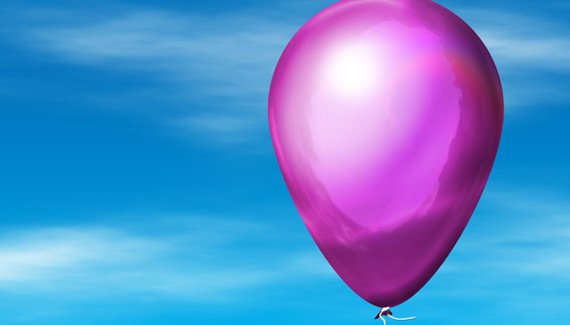
This week Corey creates a realistic balloon against a blue sky all from scratch. Inspired by the Pixar’s new movie UP.

This week Corey creates a realistic balloon against a blue sky all from scratch. Inspired by the Pixar’s new movie UP.


Amazing, as usual. Keep it up Corey.
I absolutely enjoyed reading your post…
first to comment
wicked cool corey your clear and concise I am gonna master photoshop cos of these vids nice one
Once again Corey a fantastic tutorial, thank you.
I liked watching this come together; a simple balloon never looked so cool. 🙂
Thanks for the tutorial. That was one of the best I have seen in a long time.
Such a wonderful tut, Corey…please keep them coming. Your teaching style is so clear, you make even complex steps seem easy.
dude… you are jesus…
Corey, your current tutorials based on new movies is terrific! One day, I hope you will produce some tutorials based on past movies, i.e. all the pixar movies (especially Cars), & other greats. (PS – all of your tutorials are fantastic — Thanks for sharing your amazing talents)
exelente illustracion me gusto mucho
Awesome! What are you doing for Night at the Museum 2? It’s one of the best sequels I’ve ever seen!!! 🙂
NICE!
Just saw Up this weekend. The balloons were my favorite part!
Corey, could you take this a step further and do an animated balloon with color cast shadow? When the balloons passed over the street below there were these really cool colorized shadows that passed over everything. That part is still sticking in my head. Would love to see it as a tutorial. 🙂
but it would have been fun to make a character from the movie
Great stuff as usual Corey.
A quick question; when are you going to write a book on your techniques,?as you seem to be the one I follow most due to your expertise.
This tutorial was great as always Corey! Thanks a lot
Your AWESOME Corey!
amazing, awesome, fantastic corey
Hi, where can i get commands for the pc, because when i try shift delete nothing happens?
Great tut. Used it for a banner in an email I just ran. Thanks!
http://www.cobornsdelivers.com/images/email/2009/05/13_guerilla/banner.jpg
Very cool!!!
Very fun project – thanks!
@Andre
For a PC, when he says delete, use your backspace key. Also, just in case you don’t know this, option is alt.
Hi Corey,
I like the way you explain things.
Can you help me? I need to create a “take a tour video” for my website.
Pls contact me on e(at)u-city(dot).org
Thx
My photoshop will not let me do Artist filter.. so I cannot do the plastic wrap filter… 🙁 Anyone know what is going on?
Corey,
I’ve been watching your tutorials and they are fabulous, please keep up the great work… I look forward to you new postings.
A new “fan” of you work (not a stalker) 🙂
Lori
This was awesome. I am still pretty new to all this and I could still follow along. Here is what I came up with. http://LosingSarah.deviantart.com/art/Balloons-Set-Free-179403298?q=&qo=
I am a huge fan of yours. Your tutorials are always so easy to follow. Thanks for another great one.
I personally don’t think the plastic wrap did you a favor when it created a hard shadow that isn’t very natural looking. I love tutorials like these, and the sky was just one of those quick things that are very useful. I’ll make a note to look at other tutorials.
This was so cool. You make everything look so easy, thanks for the inspiration.