Sponsored by the National Association of Photoshop Professionals. Learn More

Cut Out Effect


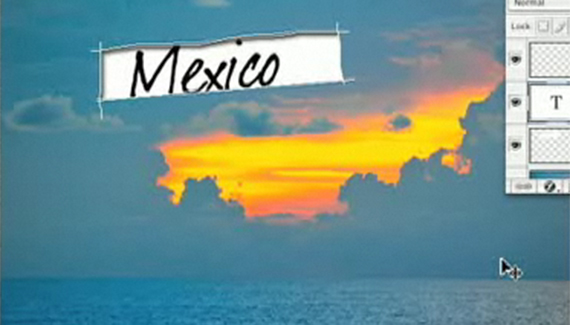
In this video tutorial, Dave Cross shows you how to create a cut out effect on your photos.

Dave Cross is Senior Developer, Education and Curriculum for the National Association of Photoshop Professionals and is involved in all aspects of the training that is provided to NAPP members. Dave’s book “The Photoshop CS2 Help Desk” is now available on ScottKelbyBooks.com

Spread the word:
  • Digg
  • del.icio.us
  • Facebook
  • Furl
  • NewsVine
  • Pownce
  • Technorati
  • TwitThis
  • BlinkList
  • Design Float
  • Ma.gnolia
  • Mixx
  • Reddit
  • Slashdot
  • SphereIt
  • StumbleUpon

2 Comments

  1. Photoshop Video Tutorials | Photoshop | Best collection of free video tutorials on software and internet applications Pingback on — April 24, 2008 @ 10:15 am

    [...] (oman3d.com) Adding Smoke to an Image  (oman3d.com) Making a Vignette  (oman3d.com) Cut Out Effect : create a cut out effect on your photos  (planetphotoshop.com) Gritty Photo Effect : create a cool photo effect  [...]

  2. Tatto said on — August 5, 2008 @ 3:40 am

    cool!!
    sweeet little video there!!
    amazing what you can do through imagination!

RSS feed for comments on this post. TrackBack URI

Leave a comment

Invert to Alpha

When working with vector - created art and the source art is unavailable, modifying the art to create a logo can be a pain, to say the least—particularly when it’s flattened and the background needs to be knocked out.  A careful combination of Invert (Command - I [PC: Ctrl - I]), Color Balance (Command - B [PC: Ctrl - B]), and layer Blending Options (Control-click [PC: Right-click] the layer name) can yield simple background knockouts of one- or two-color logos without making a mess.

Read More Tips

Tip of the Day
 
 
Kelby Training